Questions
1. Who is Carolina Software and what is its relationship with CSG Forte?
2. What types of organizations typically use WasteWORKS?
3. Can WasteWORKS integrate with third-party payment processors other than CSG Forte?
4. What payment methods are supported in WasteWORKS?
5. How is WasteWORKS configured to support credit card processing?
5.1. How can the credit card service fee settings be updated in WasteWORKS?
5.2. How can the WasteWORKS payment integration be verified after setup?
5.3. Are there any network or firewall requirements that should be verified before testing or deploying CSG Forte payment processing in WasteWORKS?
6. Can Auto Pay be configured in WasteWORKS?
7. Does WasteWORKS integration use callbacks or webhooks?
8. How does BillPay web-based payment processing work in WasteWORKS?
9. Does WasteWORKS use Forte Checkout (FCO) or Secure Web Pay (SWP)?
10. How is Dex used?
10.1. How is access to Dex requested?
10.2. How can WasteWORKS customers be located in Dex?
11. How is “Card on File” processing performed in WasteWORKS?
11.1. How is the “Card on File” option configured?
11.2. Is there another way to configure the “Card on File” option?
11.3. How can the “Card on File” option be used once it has been configured?
11.4. Can multiple payment methods be stored using “Card on File” option?
11.5. Where can “Card on File” transaction history be viewed?
11.6. What happens when a “Card on File” payment method expires?
12. How are settlement, reporting, and transaction lookup handled in WasteWORKS?
12.1. Why do WasteWORKS reports and Dex reports sometimes show different values?
12.2. Why do funding and batch totals not always match the daily activity shown in WasteWORKS?
13. What are the transaction types used in WasteWORKS?
13.1. How can a transaction associated with a “Ticket” be created?
13.2. How can transactions associated with a “Payment” ticket be created?
13.2.1. Can a refund be processed through the “Payment” module?
13.2.2. Can a refund be processed in WasteWORKS for cash customers through the “Payments” module?
13.3. How is a transaction voided using the “Void” module in WasteWORKS?
14. What keyboard shortcuts are available in WasteWORKS?
1. Who is Carolina Software and what is its relationship with CSG Forte? |
Carolina Software is an Independent Software Vendor (ISV) and a CSG Forte partner that offers WasteWORKS, a desktop-based waste management software solution designed to support ticketing, billing, and reporting for waste and recycling operations. The platform integrates with CSG Forte, primarily through the Advanced Gateway Interface (AGI) and Point of Sale (POS) device integration, as well as file- and web-based support for BillPay. The integration also supports Dex, card on file transactions, refunds, voids, and configurations for both service fee and absorbed processing models.
2. What types of organizations typically use WasteWORKS? |
|
|
WasteWORKS is primarily used by municipal governments, counties, and waste management organizations to support waste collection, disposal, recycling, and billing operations. Some integration requirements and enhancement requests submitted by Carolina Software are driven by the operational needs of government entities, which may have specific policies regarding payment processing, service fees, and customer billing workflows.
3. Can WasteWORKS integrate with third-party payment processors other than CSG Forte? |
|
|
Yes. WasteWORKS supports integrations with multiple certified payment processing providers such as CSG Forte, OpenEdge, and others. Each payment processor operates independently and maintains its own payment processing environment, features, credentials, reporting, and configuration requirements.
4. What payment methods are supported in WasteWORKS? |
|
|
WasteWORKS supports multiple payment methods depending on the merchant configuration and available hardware.
Payment Method | Description |
Card Present | The customer inserts, taps, or swipes a card using a supported payment device. |
Card Not Present | The card information is entered manually in the “Credit Card Sale” window in WasteWORKS. |
Card on File | Is used to process the transaction without re-entering card details. |
Cash | Payments can be recorded using the “Cash tendered” option in WasteWORKS for cash. |
Check | Payments can be recorded using the “Check amount” option in WasteWORKS for check. |
Note: ACH transactions are not supported by WasteWORKS.
5. How is WasteWORKS configured to support credit card processing? |
|
|
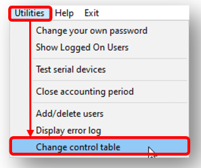
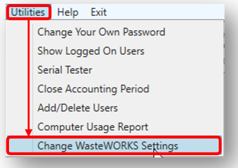
The “Credit Card” configuration screen in WasteWORKS allows users to perform the initial payment configuration and update it as needed. This screen is accessible through the “Utilities” menu. The navigation path varies depending on the WasteWORKS version in use.
Version 1.6 | Version 2.1 |
Navigation Path: “Utilities” → “Change Control Table”
| Navigation Path: “Utilities” → “Change WasteWORKS Settings”
|
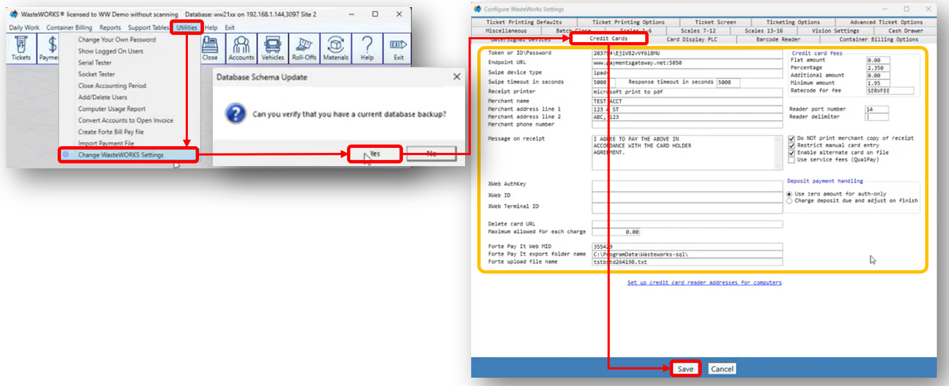
Once a merchant has been onboarded with CSG Forte, WasteWORKS requires an initial credit card configuration before payment processing can begin. This configuration enables key payment features, such as payment device integration, “Card on File” transactions, manual card entry, and other credit card processing settings.To complete the setup, users must:
a) Log in to WasteWORKS using the appropriate credentials.
b) Select the “Utilities” tab at the top toolbar and choose the “Change WasteWORKS Settings” option.
c) Confirm the backup prompt by selecting “Yes”.
d) In the “Configure WasteWorks Settings” window displayed, select the “Credit Cards” tab.
e) Enter the required configuration settings according to the parameters described in the table below.
Field Name | Description |
Token or ID\Password | Information provided by CSG Forte once the merchant has been successfully onboarded. For additional information, refer to the “Creating API Credentials” resource. |
Endpoint URL | Corresponds to the URL provided by the WasteWORKS team to support Card on File transactions and manual card processing. |
Swipe device Type | Select the appropriate option according to the customer’s setup: •iPad: Select this option when transaction receipts will be printed directly from the payment device. Note: Carolina Software merchants can use the V400c Plus, eDynamo, and DynaFlex II Go devices. Device support depends on the WasteWORKS version in use. Most merchants use the V400c Plus and eDynamo, while the DynaFlex II Go is generally supported in version 2.1 and later. •iPad+: Select this option when receipt printing is managed by WasteWORKS rather than the payment device. Note: Disabling the print is a CSG Forte function but will require some assistance from a WasteWORKS tech to add the printer to the “Credit Card” tab. |
Swipe timeout in seconds/ Response timeout in seconds | Set this value to 5000. This is the recommended setting and should not be changed. |
Receipt printer | Specifies the printer used when receipt printing is not performed directly on the payment device. |
Merchant name / Merchant address line 1/ Merchant address line 2 / Message on receipt | Correspond to the merchant information displayed on the receipt header and the predefined message at the bottom of the receipt. |
XWeb Authkey/XWeb ID /XWeb Terminal ID | These fields apply only to merchants processing through the OpenEdge integration and should be left blank for CSG Forte accounts. |
Delete card URL | |
Maximum allowed for each charge | Defines the maximum credit card amount allowed per transaction. |
Forte Pay It Web MID | Corresponds to the Merchant ID assigned to the customer's account. This field applies only when the merchant uses CSG Forte BillPay for web payments and is provided by CSG Forte during setup. |
Forte Pay It export folder name | Specifies the folder where WasteWORKS saves the “Forte Bill Pay” file. |
Forte upload file name | Specifies the name of the file generated by WasteWORKS for upload to CSG Forte BillPay. |
Credit card fees | Defines the service fee configuration applied to credit card transactions. • Flat Amount: Fixed fee charged per transaction. • Percentage: Fee calculated as a percentage of the transaction amount. • Additional Amount: Additional fee applied when configured. •Minimum Amount: Minimum fee charged per transaction. • Barcode for Fee: Typically set to “SERVFEE” when the account holder is responsible for paying the service associated to credit card. |
Reader settings | Device communication settings defined by WasteWORKS. • Reader Port Number: Port used to communicate with the payment device. Typically set to 14. • Reader Delimiter: Default delimiter used for device communication. |
Billing settings | The applicable checkboxes should be selected according to the customer's processing requirements. |
Deposit payment handling |
f) Select "Save" to apply the changes.
Note: after the setup is completed, specific settings, such as payment device type, pricing models, and other processing options, can be adjusted as needed.
5.1. How can the credit card service fee settings be updated in WasteWORKS? |
|
|
Merchants with access to the “Change WasteWORKS Settings” tab, can update the credit card service fee configuration directly in WasteWORKS. This configuration is used to manage fee-related settings such as minimum amounts and percentage-based service fees that are passed through to the card holder. To update it:
a) Access WasteWORKS, select the “Utilities” tab at the top toolbar and choose the “Change WasteWORKS Settings” option.
b) Confirm the backup prompt by selecting “Yes”.
c) In the “Configure WasteWorks Settings” window displayed, select the “Credit Cards” tab.
d) Edit the “Credit Card Fees” section located on the right side of the window and update the “Percentage” and “Minimum amount” fields as required.
e) Select “Save” to apply the changes.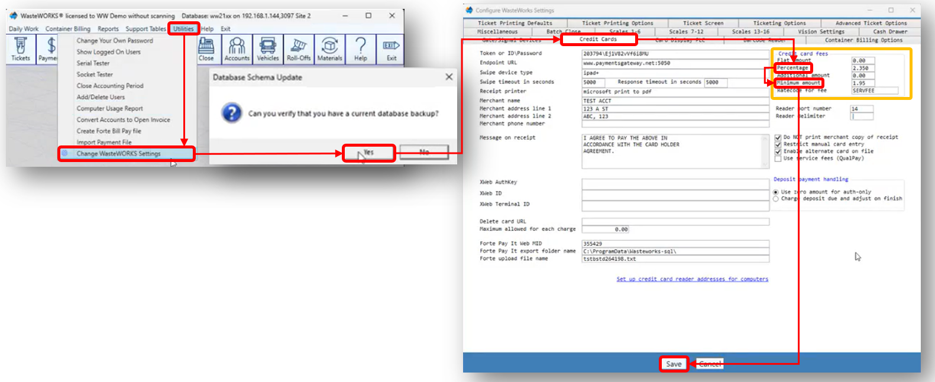
Notes:
• If the “Utilities” tab is unavailable or grayed out, contact a Carolina Software at (910) 799-6767, Option 1, to update the “Credit Card Fees” settings.
• Update the “Percentage” and “Minimum amount” fields only when the merchant wants to pass the fee to the cardholder.
5.2. How can the WasteWORKS payment integration be verified after setup? |
|
|
After all credit card configuration has been completed, merchants can verify the integration by processing a test transaction through the “Tickets”, “Payments” or “Void” modules. During the verification process, WasteWORKS communicates with the connected payment device if applies and confirms that transaction information is received successfully. A successful transaction generates a reference number and allows the ticket to be completed normally. For more information on how to verify a transaction, see Question 13.
5.3. Are there any network or firewall requirements that should be verified before testing or deploying CSG Forte payment processing in WasteWORKS? |
|
|
Yes. Before deploying CSG Forte payment processing in WasteWORKS, the merchant should verify that the required payment gateway URLs are accessible and that any necessary firewall rules have been configured. Depending on the implementation, users who process credit card transactions or perform void transactions may also require specific network access permissions. Coordination between the merchant's IT team, Carolina Software, and CSG Forte may be required to validate connectivity and complete implementation testing successfully.
6. Can Auto Pay be configured in WasteWORKS? |
|
|
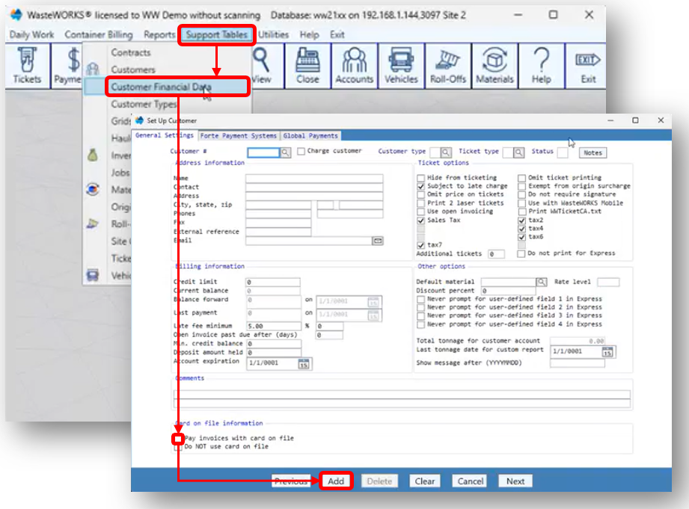
Yes. WasteWORKS supports Auto Pay feature through the “Card on File” feature for invoice billing customers. When a valid payment method is stored on the customer account, invoice payments can be processed automatically using the stored card information. Auto Pay applies only to recurring invoice payments and must be enabled after the “Card on File” configuration has been completed. To enable this functionality:
a) Go to the “Support Tables” and select “Customer Financial Data” option.
b) Select the “Pay invoices with card on file” checkbox.
c) Click on the “Add” button to save the configuration.
7. Does WasteWORKS integration use callbacks or webhooks? |
|
|
No. The current WasteWORKS integration does not use callbacks or webhooks. Transaction processing and status updates are handled through the existing integration methods rather than event driven notifications.
Note: Carolina Software has considered the potential use of callbacks or webhooks in future enhancements, particularly for scenarios such as void confirmations and other transaction related events.
8. How does BillPay web-based payment processing work in WasteWORKS? |
|
|
The BillPay feature is used for Accounts Receivable (A/R) customers and enables WasteWORKS to integrate with CSG Forte BillPay for web-based payment processing. When configured, customers can submit payments through a BillPay site. The steps below describe how to configure and use this functionality.
A. Configure the Customer “Forte billing ID”
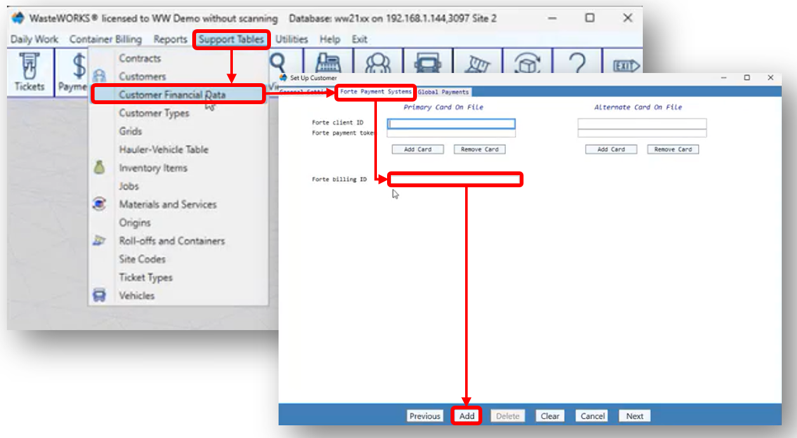
The “Forte billing ID” is a customer specific identifier created by the WasteWORKS team in coordination with the merchant. It is typically generated using the customer account number along with additional identifying information, such as the first four non space characters of the company name or the last four digits of a phone number. This identifier is used by customers to access and submit payments through CSG Forte BillPay site and must be configured in the system as described below.
a) Log in to WasteWORKS using the appropriate credentials..
b) Select the “Support Tables” tab at the top toolbar and choose the “Customer Financial Data” option.
c) In the “Set Up Customer” window displayed, select the “Forte Payment Systems” to add the “Forte billing ID”.
d) Click “Add” button to apply the changes.
B. Configure the Forte Pay Information
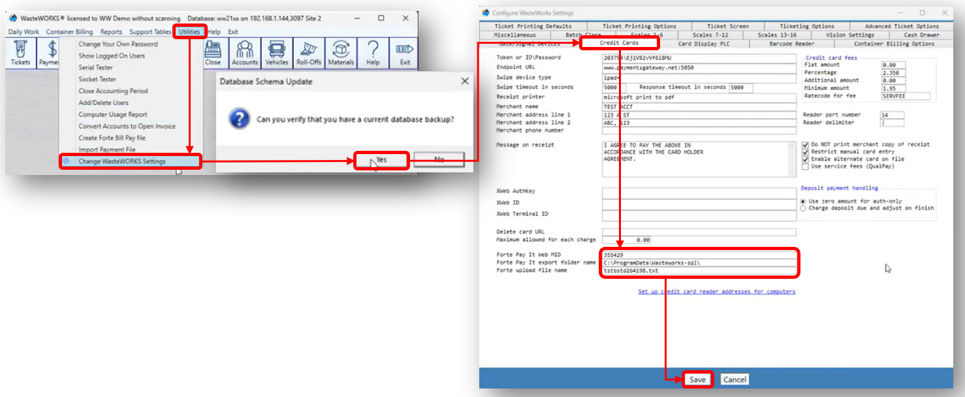
Once the “Forte billing ID” has been assigned, the one-time configuration of the Forte Pay information in WasteWORKS must be completed. This configuration enables the system to generate the billing export files and supports the payment import process. The steps below describe how to configure this functionality.
a) Select the “Utilities” tab at the top toolbar and choose the “Change WasteWORKS Settings” option.
b) Confirm the backup prompt by selecting “Yes”. In the “Configure WasteWorks Settings” window displayed, select the “Credit Cards” tab and add the Forte Pay information. For details about these fields, refer to the table in Question 5.
Note: the configuration requires information provided by CSG Forte during integration setup, such as the Merchant ID and other BillPay information.
c)Click the “Save” button to apply the changes.
C. Process BillPay Files
After the “Forte billing ID” and Forte Pay information settings have been configured, merchants can use the following workflow to export billing information, upload it to CSG Forte BillPay, receive customer payments, and import the payment results into WasteWORKS. The steps below describe how to perform the process.
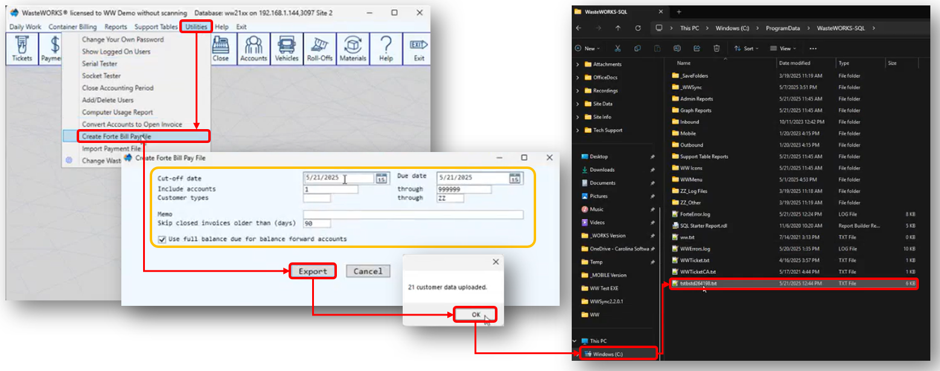
C.1. Generate the billing information report (“tstbstd264198.txt”)
a) Select the “Utilities” tab at the top toolbar and choose the “Create Forte Bill Pay file” option.
b) In the “Create Forte Bill Pay File” window displayed, enter the information according to the reporting requirements, such as cut-off date range or others.
Note: Select “ZZ” in the “Customer Types” field to exclude customers with closed accounts from the report results.
c) Click “Export”, confirm the number of downloads by selecting “OK” to generate the “tstbstd264198.txt”. The report is saved to the folder specified during the configuration process.
C.2. Upload the “tstbstd264198.txt” to CSG Forte BillPay
a) Once the report has been downloaded, upload it to CSG Forte BillPay using the FTP interface by following the steps described in the “Using the FTP Interface” resource.
b) After the file is uploaded, payers can view and pay their balances through the CSG Forte BillPay system. For additional information on the payment process, refer to the BillPay Demo.
c) Once payments have been made, CSG Forte automatically sends merchants a “Payment” file by email containing transaction details such as the account number, payment amount, invoice information, and transaction ID.
C.3. Import the “Payment” file into WasteWORKS
a) Download the “Payment” file from the email.
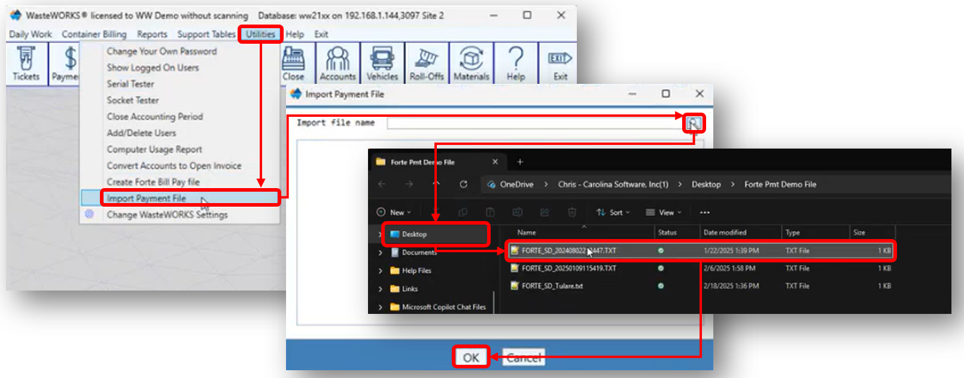
b) Return to WasteWORKS, open the “Utilities” tab, and select “Import Payment File” option.
c) In the “Import Payment File” window displayed, select the lookup icon, browse to the “Payment” file, and select it.
d) Complete the import process by selecting “OK” button.
Notes:
• Once uploaded, the system automatically applies the payments to the appropriate payer accounts.
• Each imported payment includes a unique transaction ID. WasteWORKS stores this identifier and uses it to prevent duplicate payment imports, ensuring the same transaction is not applied more than once.
• This manual process is performed by merchants once per month.
9. Does WasteWORKS use Forte Checkout (FCO) or Secure Web Pay (SWP)? |
|
|
No. Carolina Software does not integrate Forte Checkout (FCO) or Secure Web Pay (SWP) with the WasteWORKS application. Instead, the integration is primarily based on the Advanced Gateway Interface (AGI), supported payment devices, and file based BillPay processes. Transaction processing, “Card on File” functionality, and device integrations are handled directly through WasteWORKS.
10. How is Dex used? |
|
|
Dex is used by merchants to view transaction details, funding information, and reconciliation reports. While WasteWORKS maintains transaction data and related customer information within the application, Dex provides access to detailed payment processing records and reporting available through CSG Forte. Merchants commonly use both systems together to reconcile transaction activity and verify payment information.
Note: For information that is not available directly within WasteWORKS, such as detailed transaction history, settlement information, or refund processing, users may need to access Dex.
10.1. How is access to Dex requested? |
|
|
Access to Dex must be requested through an authorized contact associated with the merchant account. If additional users require access, the authorized contact must contact CSG Forte and request the creation of the user account. Once the request is received and validated, CSG Forte reviews the request and assists with the user set up process.
10.2. How can WasteWORKS customers be located in Dex? |
|
|
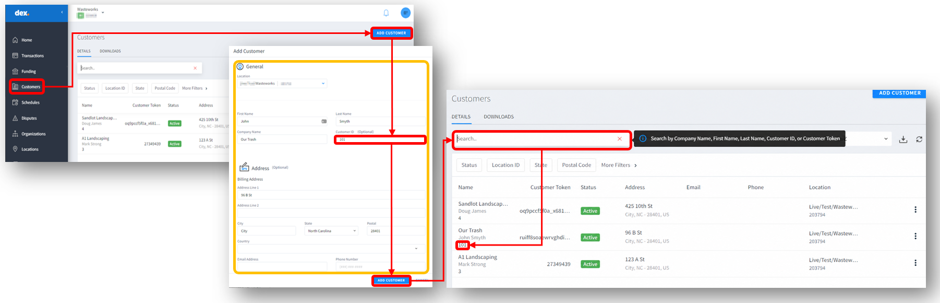
Dex provides search capabilities that allow users to locate customers by first name, last name, company name, Customer ID, or Customer Token. To simplify customer identification between WasteWORKS and Dex, users can store the WasteWORKS customer account number in the “Customer ID” field when creating the customer in Dex. To configure this, follow the steps below:
a) Log in to Dex using the appropriate credentials and select “Customers” from the left pane.
b) Select “ADD CUSTOMER” option in the upper-right corner of the window.
c) Enter the customer information, including the “Customer ID” assigned in WasteWORKS, and select “ADD CUSTOMER”.
d)Once the customer has been created, users can search for the “Customer ID” in Dex.
11. How is “Card on File” processing performed in WasteWORKS? |
|
|
If the customer has a configured “Forte client ID” and “Forte payment token” in WasteWORKS, the transaction can be processed using the “Card on File” option. This allows WasteWORKS to submit the transaction using the stored payment credentials without requiring the card to be presented again.
11.1. How is the “Card on File” option configured? |
|
|
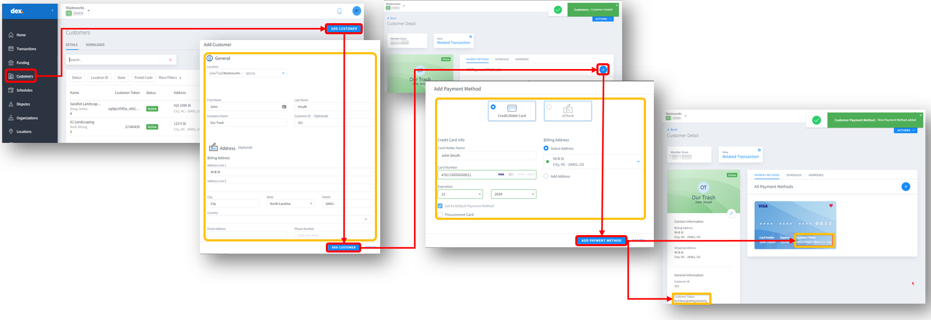
To configure the “Card on File” option in WasteWORKS, the card holder and payment method must first be created in Dex. Once created, Dex generates a “Customer Token” and “Payment Token”, which are then entered in the customer configuration window in WasteWORKS under the “Forte Client ID” and “Forte Payment Token” fields, respectively. To complete the configuration, follow the steps below.
A. Dex
a) Access Dex and select “Customers” option from the left pane.
b) Select “ADD CUSTOMER” in the upper right corner of the window.
c) Enter the customer information and select “ADD CUSTOMER” button.
d) Once the “Customer Details” window is displayed, select the blue plus (“+”) icon.
e) Select “Credit/Debit Card”, enter the card information, and optionally select “Set as Default Payment Method” if applicable.
Note: Multiple payment methods can be added; however, WasteWORKS supports credit card payments only.
f) Choose “ADD PAYMENT METHOD” button to save the information and return to the “Customer Details” window.
g) Copy the “Customer Token” and “Payment Token” displayed to continue the process in WasteWORKS.
B. WasteWORKS
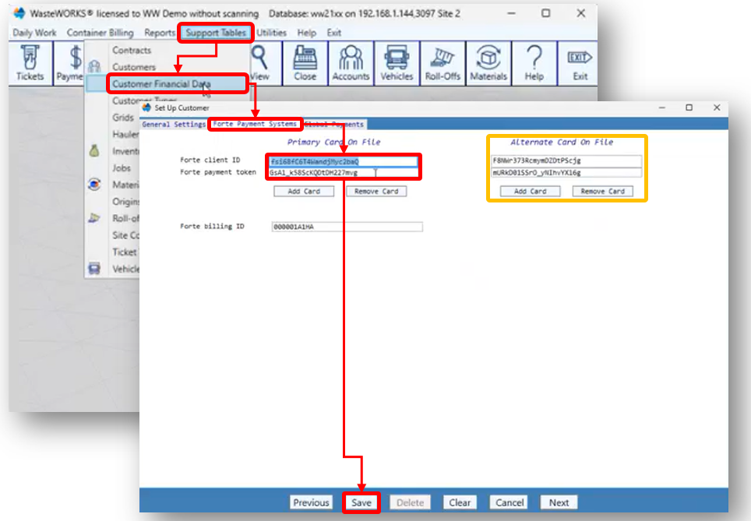
a) Return to WasteWORKS and select the “Support Tables” tab and select “Customer Financial Data” option.
b) Choose the “Forte Payment Systems” tab in the window displayed.
c) Paste the “Customer Token” and “Payment Token” copied from Dex into the “Forte Client ID” and “Forte Payment Token” fields, respectively.
d) Select “Save” button to apply the changes.
Note: The system supports configuring a secondary payment method, which can be used automatically if the primary payment method is unavailable.
11.2. Is there another way to configure the “Card on File” option? |
|
|
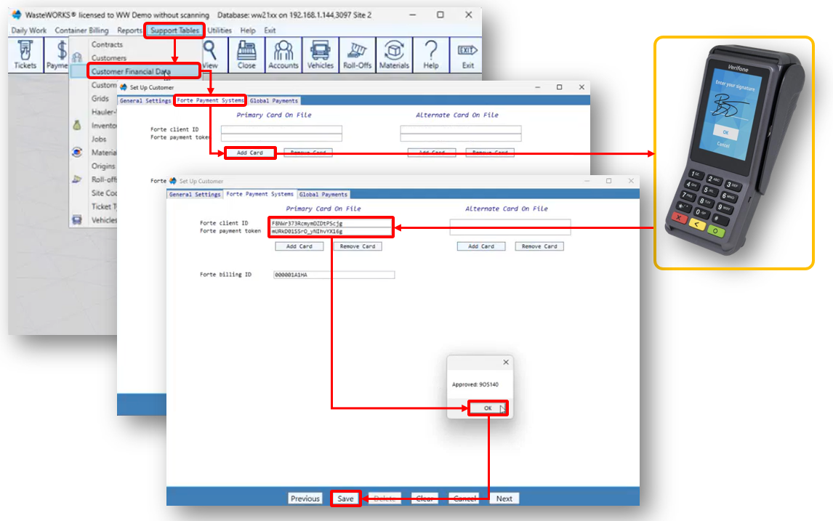
Yes. WasteWORKS includes an enhanced “Card on File” configuration method that uses the V400C Plus device to create a “Card on File” record without manually entering the card information in Dex. This approach reduces the need to contact customers to obtain card details, limits employee access to card numbers, supports PCI compliance efforts, and streamlines customer service operations. To configure “Card on File” option using the V400C Plus:
a) Access WasteWORKS, select the “Support Tables” tab and then select “Customer Financial Data” option.
b) Open the “Forte Payment Systems” tab and click on the “Add Card” button to activate the V400C Plus device from within WasteWORKS. The system performs a temporary US$0.10 transaction.
Note: when a convenience fee applies, it is added to the transaction amount.
c) Approve the transaction. Once approved, the system obtains the card tokens and automatically saves them in the customer setup in the system. The total amount (including service fee) of the transaction is then automatically voided in both WasteWORKS and Dex.
Note: This configuration is only supported when merchants are using a V400C Plus payment device and is not available for DynaFlex II Go or eDynamo devices.
11.3. How can the “Card on File” option be used once it has been configured? |
|
|
Once “Card on File” option has been configured, it can be used to process transactions through either “Tickets” for cash customers or “Payment” for statement and invoice payments. The “Card on File” setup process is the same for both transaction types. For detailed instructions on processing payment using the “Card on File” option, refer to Question 13.
11.4. Can multiple payment methods be stored using “Card on File” option? |
|
|
Yes. Both Dex and WasteWORKS support storing at least two “Cards on file” payment methods per customer, allowing merchants to maintain multiple payment options when needed.
11.5. Where can “Card on File” transaction history be viewed? |
|
|
Transactions processed through “Card on File” are stored within the corresponding customer record in Dex. To view transaction history, open the customer set up window and select “Related Transaction” button at the top of the window in Dex. This provides access to transactions associated with the stored payment method.
Note: Related transactions are displayed only when transactions exist for the customer token and were processed using the “Card on File” option.
11.6. What happens when a “Card on File” payment method expires? |
|
|
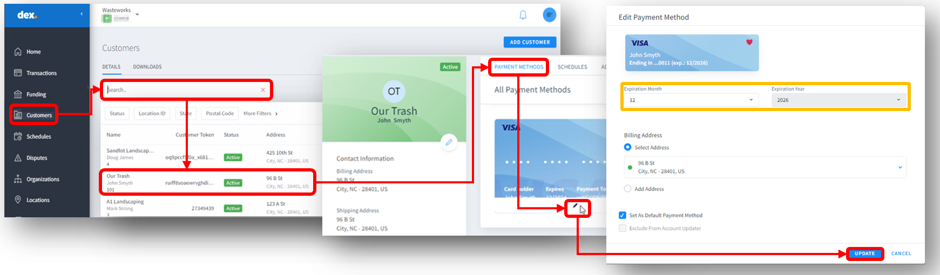
If a stored card has expired, WasteWORKS will return an error when attempting to process a “Card on File” transaction. Since the Carolina Software integration does not use the Account Updater (AU) service, card information is not updated automatically. The expiration date must be updated manually in Dex before the payment method can be used again. To update an expired card, follow the steps below.
a) Log in to Dex using the appropriate credentials and select “Customers” from the left pane.
b) Search for the customer whose payment method requires an update by using the “Search” bar.
c) Select the customer from the search results.
d) Open the “PAYMENT METHODS” tab and select the “Pencil” icon associated with the payment method to be updated.
e) Update the “Expiration Month” and “Expiration Year” fields.
f) Click on the “UPDATE” button to save the changes.
12. How are settlement, reporting, and transaction lookup handled in WasteWORKS? |
|
|
Function | Description |
Settlement | Operators must continue closing their batch in WasteWORKS as part of the normal end-of-day process. These moves completed tickets into history. Credit card transactions are settled automatically on the CSG Forte side. |
Reporting | WasteWORKS provides a batch close reports to identify and reconcile credit card transactions processed on a specific date or at a specific site.
|
Transaction Lookup | Detailed credit card transaction information is available in Dex, where transactions can be viewed, refunded after settlement, and receipts reprinted as needed. |
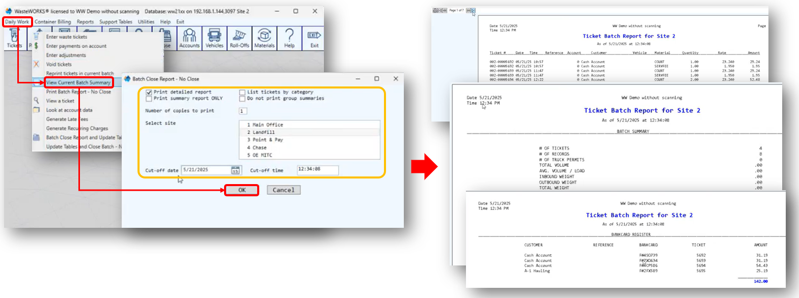
Note: Contact CSG Forte Support Services team for assistance with batch settlement schedules, account access, or any related support needs.
12.1. Why do WasteWORKS reports and Dex reports sometimes show different values? |
|
|
WasteWORKS and Dex generate reports independently. As a result, transaction details, service fee allocation, billing information, and reporting formats may not always appear identical between the two systems. When a discrepancy is identified, users should verify the transaction details in Dex and compare them with the corresponding WasteWORKS report. If Dex reflects the expected transaction data, Carolina Software may need to review the WasteWORKS reporting configuration or report output.
For example, knowing that the payment status displayed within WasteWORKS and the payment processing status maintained by CSG Forte are managed separately. If CSG Forte confirms that the payment was processed successfully but the invoice continues to appear unpaid within WasteWORKS, the issue may be related to the WasteWORKS billing or invoice management process and users should contact Carolina Software for assistance.
12.2. Why do funding and batch totals not always match the daily activity shown in WasteWORKS? |
|
|
Funding activity and settlement batches are processed according to CSG Forte funding schedules and settlement cutoffs. Transactions processed after the daily cutoff may be included in a subsequent settlement batch. Additionally, account funding rules, including funding holds and split funding configurations, may affect when funds become available and how transactions appear in settlement reports. Users should review funding reports in Dex when reconciling deposits and settlement activity.
13. What are the transaction types used in WasteWORKS? |
|
|
WasteWORKS includes several transaction workflows designed to support payment processing and account management activities. The table below provides an overview of the primary modules used by customers.
Module | When It Is Used | Example |
 | Is used when a transaction is associated with a scale operation and includes operational details such as weights, materials, and service charges. Payment is collected as part of completing the ticket. | A truck enters a landfill, the load is weighed, the final charge is calculated, and the customer pays before the ticket is completed. |
 | Is primarily used to apply payments to customer Accounts Receivable (AR), or outstanding balances, including accounts billed on recurring weekly or monthly cycles. The module also allows users to process “Refunds” after a transaction has been settled. | A customer pays an outstanding invoice balance, or a refund is issued for a previously settled transaction. |
 | Is used to cancel a ticket and the associated credit card transaction before settlement. The original transaction is reversed rather than refunded. | A payment was processed with an incorrect amount, and the error is identified before the transaction is settled. The ticket is voided instead of refunded. |
13.1. How can a transaction associated with a “Ticket” be created? |
|
|
To create a transaction associated with a scale ticket, follow the steps outlined below.
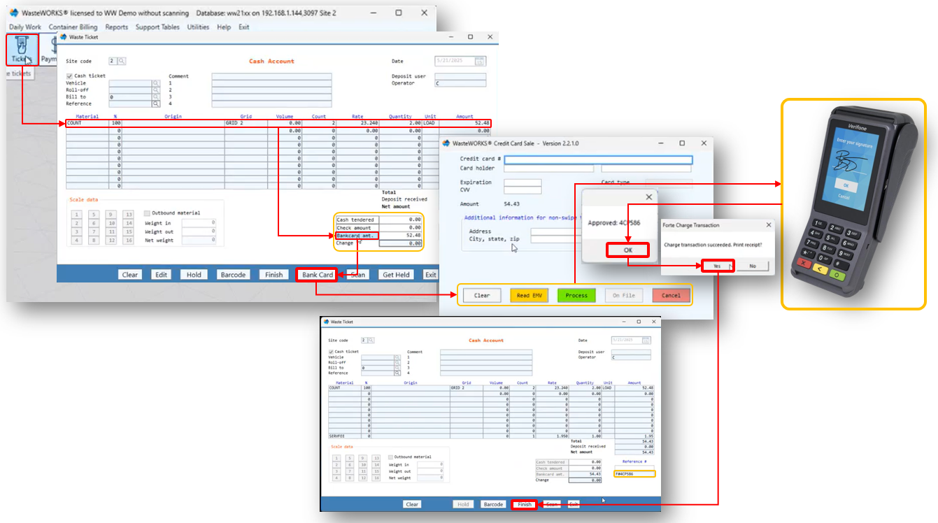
a) Log in WasteWORKS and select “Tickets” module.
b) Enter the required transaction details, such as material, percentage, origin, volume, and any other applicable fields.
c) Click the “Bankcard AMT” field (or press Alt + R) to display the total amount in the white field next to it.
Note: Users can split payments between cash, check, and bank card.
d) Click the “Bankcard AMT” field (or press Alt + R) to display the total amount in the white field next to it.
e) Choose the appropriate button to process the transaction based on the table below.
Button | Functionality |
| Read EMV | Insert the EMV chip card into the device and leave it inserted until the transaction is complete. |
| Process | Swipe the card through the magnetic stripe reader or tap the card on the device to process a contactless payment. |
| On File | The “On File” button is available only when “Card on File” option has been configured and the transaction will use the stored payment information. |
Note: manual card entry is supported. However, when a payment device is connected or a “Card on File” option is used, the payment information is captured automatically and the “Credit Card #” field is unavailable.
f) Ask the customer to insert, tap, or swipe the card on the device, if applicable, and follow the on-screen instructions displayed on the device and confirm the total transaction amount.
Notes:
• When a convenience fee model is enabled, WasteWORKS displays the total transaction amount plus the applicable convenience fee.
• Electronic signatures are not captured directly on the device. When prompted, hand the device to the customer to sign.
g) Return to the main WasteWORKS window and wait for the transaction status message (Approved or Declined) to appear and select “OK” in the pop-up message.
h) When the “Charge transaction succeeded. Print receipt?” message appears, select “Yes” to print the receipt. The receipt will print according to the system configuration.
i) Verify that the “Reference #” field has been automatically populated with the approval code.
j) Select “Finish” to complete the “Ticket” and finalize the transaction.
13.2. How can transactions associated with a “Payment” ticket be created? |
|
|
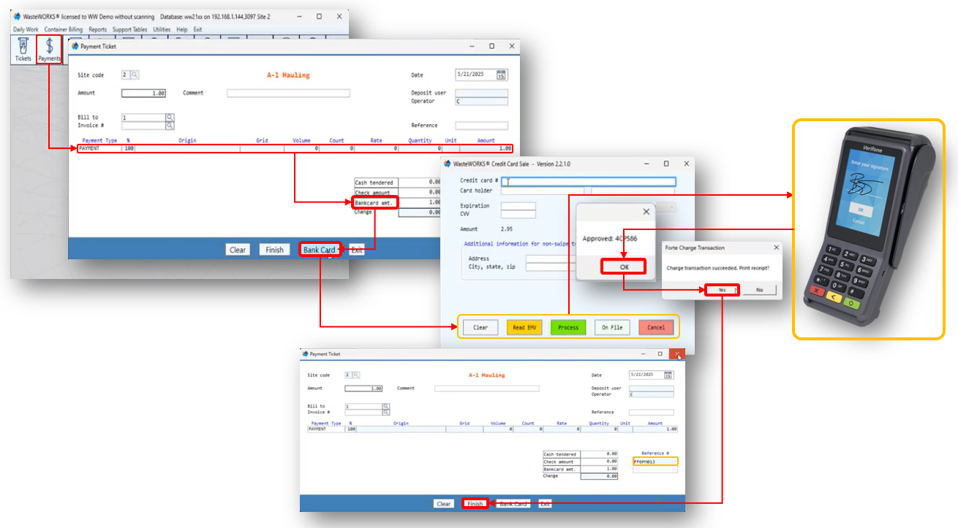
To create a transaction associated with Account Receivable (AR) using the “Payment” module, follow these steps:
a) Log in WasteWORKS and select “Payments” module.
b) Enter the required transaction details, such as material, percentage, origin, volume, and any other applicable fields.
c) Click the “Bankcard AMT” field (or press Alt + R) to display the total amount in the white field next to it.
d) Select “Bank Card” button (or press Alt + B) to open the “Credit Card Sale” window.
e) Choose the appropriate button to process the transaction based on the table below.
Button | Functionality |
| Read EMV | Insert the EMV chip card into the device and leave it inserted until the transaction is complete. |
| Process | Swipe the card through the magnetic stripe reader or tap the card on the device to process a contactless payment. |
| On File | The “On File” button is available only when “Card on File” option has been configured and the transaction will use the stored payment information. |
Note: manual card entry is supported. However, when a payment device is connected or a “Card on File” option is used, the payment information is captured automatically and the “Credit Card #” field is unavailable.
f) Ask the customer to insert, tap, or swipe the card on the device, if applicable, and follow the on-screen instructions displayed on the device and confirm the total transaction amount.
Notes:
• When a convenience fee model is enabled, WasteWORKS displays the total transaction amount plus the applicable convenience fee.
• For transactions processed through a payment device, electronic signatures are not captured directly by the user workstation. When prompted, hand the device to the customer to complete the signature.
g) Return to the main WasteWORKS window and wait for the transaction status message (Approved or Declined) to appear and select “OK” in the pop-up message.
h) When the “Charge transaction succeeded. Print receipt?” message appears, select “Yes” to print the receipt. The receipt will print according to the system configuration.
i) Verify that the “Reference #” field has been automatically populated with the approval code.
j) Select “Finish” to complete the “Ticket” and finalize the transaction.
13.2.1. Can a refund be processed through the “Payment” module? |
|
|
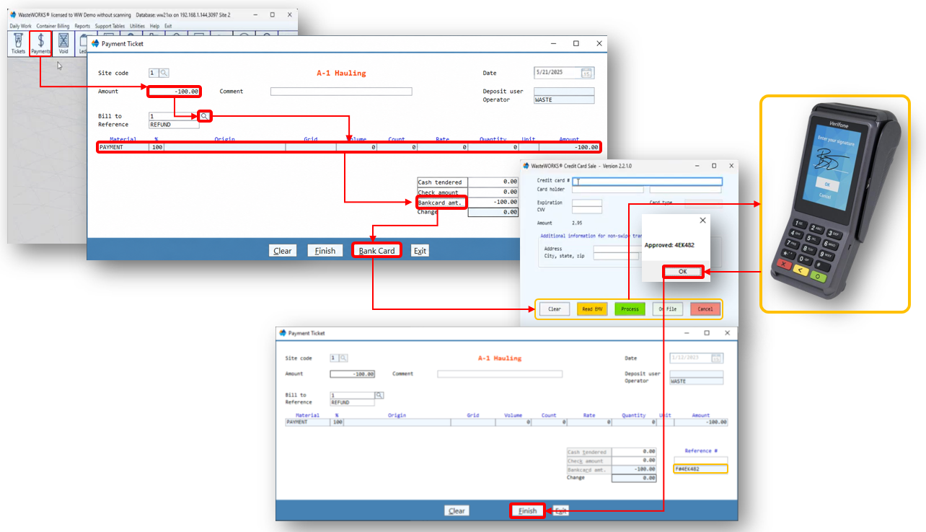
Yes. The “Payment” module is also used to process refund for Accounts Receivable (A/R) customers only. Users can issue a refund for a settled transaction, creating credit on the customer account and returning the funds from the original transaction. The steps below describe how to process this type of refund.
a) Log in WasteWORKS and select “Payments” module.
b) Enter the refund as a negative value in the “Amount” field.
c) Use the “Lookup” icon to locate the customer.
d) Populate the information required for the refund transaction.
e) Click the “Bankcard amt” field (or press Alt + R) to display the total amount in the white field next to it.
f) Select “Bank Card” button (or press Alt + B) to open the “Credit Card Sale” window.
g) Choose the appropriate button to process the refund based on the table below.
Button | Functionality |
| Read EMV | Use when the cardholder is present and the card contains an EMV chip. The cardholder must insert the EMV chip card into the device and leave it inserted until the refund is complete. |
| Process | Use when the cardholder is present and the refund will be processed using a supported payment device, swiping the card through the magnetic stripe reader or tapping the card on the device to process a contactless payment. |
| On File | Use when the cardholder is not present and the payment information has been stored through the “Card on File” feature. This is the recommended option for processing refunds when the card is unavailable. |
Note: When a refund is processed using a supported payment device, the card must be present, and the system must be configured to prompt the customer to swipe, insert, or tap the card.
h) If the refund is processed using a payment device, ask the customer to insert, tap, or swipe the card on the device, if applicable, and follow the on-screen instructions displayed on the device and confirm the total transaction amount to refund. Return to the main WasteWORKS window and wait for the transaction status message (Approved or Declined) and select “OK” in the pop-up message.
Notes: refund receipts do not print. If a receipt is required, the user must log in to Dex to locate and print the transaction receipt.
i) Verify that the “Reference #” field has been automatically populated with the approval code.
j) Select “Finish” to complete the refund and finalize the transaction.
13.2.2. Can a refund be processed in WasteWORKS for cash customers through the “Payments” module? |
|
|
No. For cash customers, refunds cannot be processed through the “Payment” module. Instead, users must void the ticket using the “Void” module in WasteWORKS and then proceed with the next step.
13.3. How is a transaction voided using the “Void” module in WasteWORKS? |
|
|
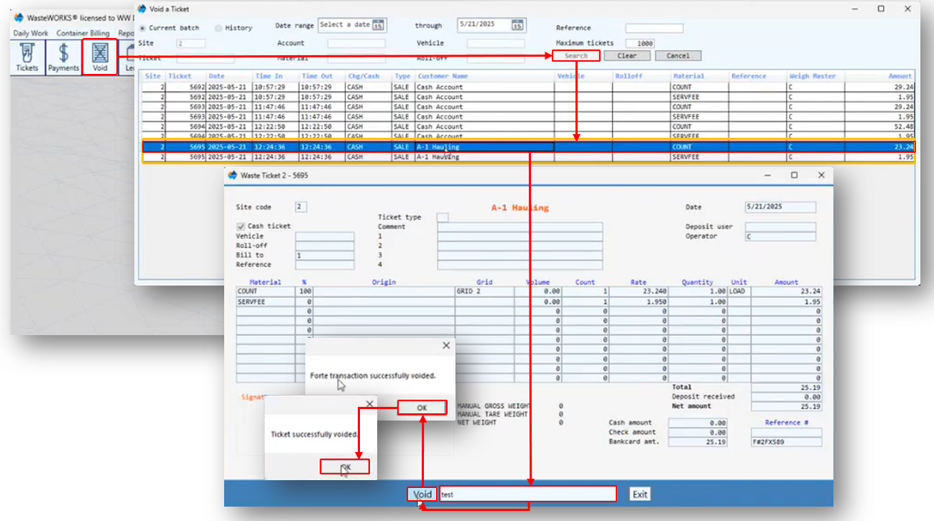
In WasteWORKS, a transaction can only be voided while it remains unsettled. When a void is processed, the original transaction is canceled rather than refunded. To perform a void, follow the steps below.
a) Log in WasteWORKS and select the “Void” module.
b) Click on the “Search” button and choose the transaction to be voided.
Note: The original transaction creates two records, “COUNT” and “SERVFEE” when a service fee is associated. However, voiding the “COUNT” record automatically voids both records.
c)In the window displayed, enter the reason for the void in the text box.
d) Click on the “Void” button.
e) Confirm both messages by selecting “OK”
Notes:
•Voided transactions will no longer appear in WasteWORKS. If a voided transaction needs to be reviewed, it can be viewed in Dex through the “Transactions” module.
•If WasteWORKS cannot void the transaction, an error message will indicate that the transaction is no longer eligible for voiding. In this case, the payment must be refunded through Dex. For more details see Reverse Transactions in Dex.
14. What keyboard shortcuts are available in WasteWORKS? |
|
|
WasteWORKS includes several keyboard shortcut keys (hot keys) that allow users to quickly access different areas of the system. The available shortcuts vary depending on the window or module currently being used, as described:
Module(s)/Window | Shortcut | Function |
| Ticket | Tab | Moves the cursor to the next available field. |
| Shift + Tab | Moves the cursor to the previous field. | |
| Alt + X | Exits the WasteWORKS application. | |
| aAlt + C | Clear the current ticket screen. | |
| Alt + N | Moves the cursor to the “Weight” field. A type of material must be entered first. | |
| Alt + E | Allows editing of material details after leaving the detail section. | |
| Alt + B | Opens the “Barcode” or “Bank Card” option. | |
| Alt + S | Initiate the “Scan” module. | |
| Alt + H | Places the current ticket on Hold, allowing users to temporarily save a partially completed ticket for later processing. This option is available only when weight information has been entered. | |
| Alt + G | Retrieves a ticket previously placed on Hold so processing can continue. | |
| Alt + F | Finishes a ticket. | |
| Ticket / Payment | Alt + T | Moves the cursor to the “Cash Tendered” field. |
| Alt + K | Moves the cursor to the “Check Amount” field. | |
| Alt + R | Moves the cursor to the “Bankcard Amount (AMT)” field. | |
| Credit Card Processing Window | Alt + R | Selects “Read EMV” button and initiates the “credit card processing” window through the connected payment device. |
| Alt + C | Clears all information entered the payment window. | |
| Alt + P | Processes manually entered card information. | |
| Alt + F | Uses the “Card on File” option, when enabled, and processes the transaction using the “Client ID” and “Payment Token” configured for the customer. |
Was this article helpful?
That’s Great!
Thank you for your feedback
Sorry! We couldn't be helpful
Thank you for your feedback
Feedback sent
We appreciate your effort and will try to fix the article