| Purpose |
Explain how to decrypt or unzip files downloaded from the FTP interface so that merchants can read responses, confirmations, or settlement details.
| Audience |
External – merchants who download and view batch-related files.
Prerequisites
The file downloaded from the FTP interface (
dlfolder).Your FTP/processing password (provided in your welcome letter or implementation package).
A tool such as 7-Zip (recommended) or WinZip.
| Steps |
Option A – Using 7-Zip (recommended)
Download the file from FTP
Use the Download Files from Forte Secure FTP Web Interface guide to download the file to your computer.
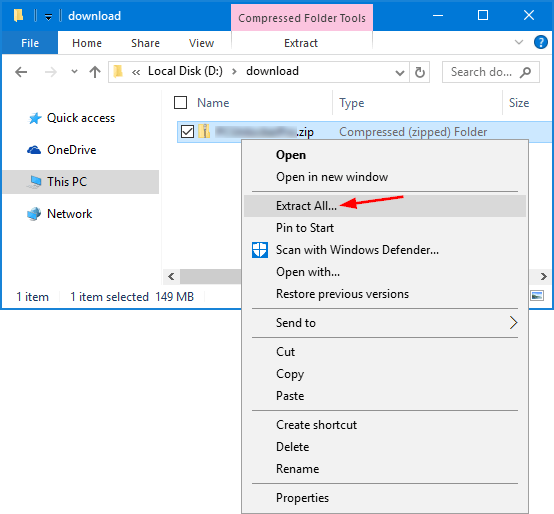
Start extraction
Locate the downloaded file.
Right-click the file.
Hover over the 7-Zip menu.
Click Extract Here.
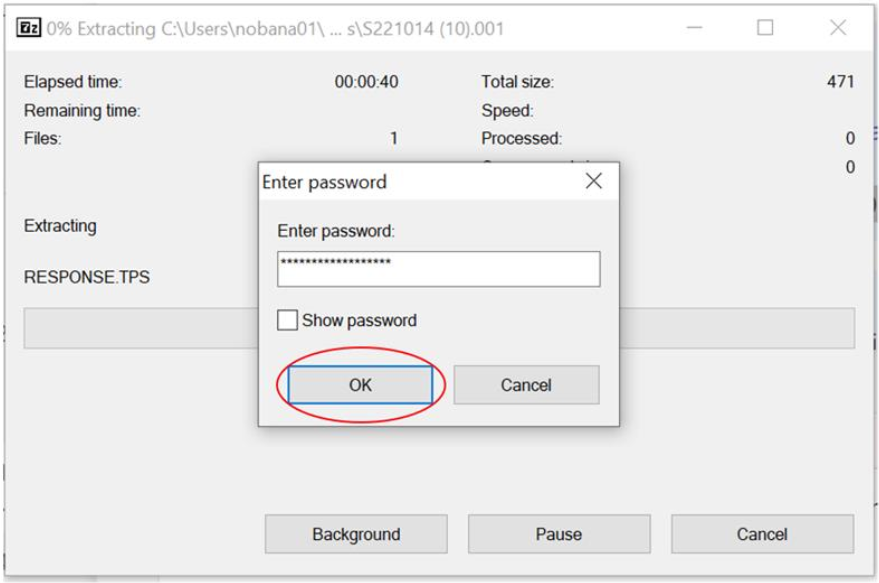
Enter your password
When prompted, enter your FTP password and click OK. This step decrypts the file.
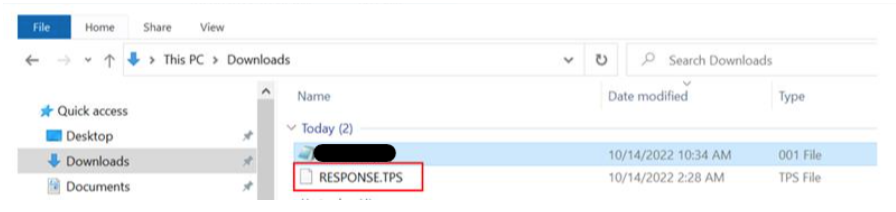
Open the decrypted file
A new file (often named
RESPONSE.TPS) appears in your folder.Open it in Notepad or Notepad++ to review the contents.
Option B – Using WinZip with .zip extension
If the file doesn’t have a
.zipextensionRename the file so that it ends with
.zip(for example,filename.zip).
Open with WinZip
Double-click the
.zipfile; WinZip opens.When prompted, enter your processing password from your welcome letter.
Extract and view
Extract the contents.
Open the extracted file(s) in a text editor or your reconciliation system.
| Related Articles |
- Process Batch Files with GlobalScape Secure FTP SoftPak Guide
- FTP Batch Transmission FAQ Testing, Files & Common Errors
- Download Files from Forte Secure FTP Web Interface
- Upload Files to Forte Secure FTP Web Interface
- Decrypt Forte FTP Downloaded Files 7-Zip & WinZip
Was this article helpful?
That’s Great!
Thank you for your feedback
Sorry! We couldn't be helpful
Thank you for your feedback
Feedback sent
We appreciate your effort and will try to fix the article