Questions
1. What is “Invoicing Services”?
2. Does Invoicing Services require SWP, and does it integrate with other produc?
3. Where is configuration managed for Dex Invoicing Services?
4. How are invoices managed in Dex?
4.1. How are invoices created?
4.2. Are products or services required before creating an invoice?
4.3. What information is required when creating an invoice?
4.4. What optional fields can be added when creating an invoice?
4.5. Can custom fields on the invoices be set up?
4.6. How are invoices sent to customers?
4.7. Can multiple invoices be created at one time (Bulk)?
4.8. Can custom fields be included when using the bulk invoice upload feature?
4.9. What information is displayed by the “Invoice Preview” button during a bulk upload?
4.10. Can invoices be deleted?
4.11. Can invoices be cloned?
4.12. Can an existing invoice be edited?
4.13. What happens if an invoice needs to be recreated in Dex?
5. If an invoice is created under the wrong location, can it be moved to another location?
6. How does a customer pay an invoice received by email?
7. How are "Invoice Date" and "Invoice Due Date" managed?
8. Can recurring payments be set up with invoices allowing the customer to set up payment plans or make multiple payments?
9. Can merchants continue using QuickBooks as an invoicing tool?
10. Are there any additional available resources?
1. What is “Invoicing Services”? |
Invoicing Services is a Dex feature that allows merchants to create invoices and share them with customers via email or SMS including a payment link, enabling customers to review invoice details and complete payments.
2. Does Invoicing Services require SWP, and does it integrate with other product? |
|
|
Yes. Secure Web Pay (SWP) must be enabled to use Dex Invoicing Services. At this time, no other product integrations are supported.
3. Where is configuration managed for Dex Invoicing Services? |
|
|
Invoice-related configuration is managed in the “Products and Services” tab within the “Locations” menu. This section allows merchants to configure invoice settings, including logos, invoice number formats, and custom invoice fields.
The “Products & Services” option available from the main Dex menu is used to create and maintain the products and services that can be included on invoices. Merchants can define details such as the product or service name, description, amount, unit of measure, and other related information.
In addition, the “Invoicing” tab allows users to create, send, clone, delete, and has the option for bulk invoice creation.
4. How are invoices managed in Dex? |
|
|
The following subsections provide an overview of invoice management in the system, including the available actions, key workflows, and processes for creating, sending, tracking, and maintaining invoices throughout their lifecycle.
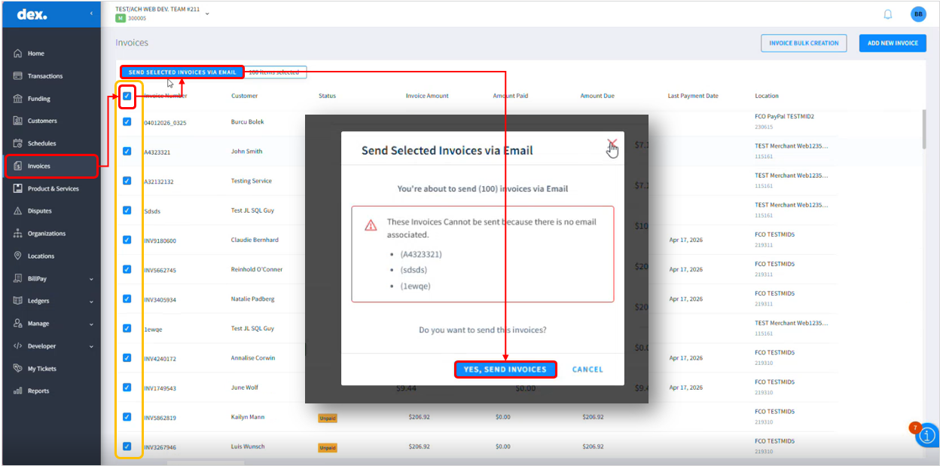
Note: For an invoice to be delivered, all customer data must be completed. Invoices can only be sent when either an email address or a phone number is associated. If the required contact information based on the selected sending method is not available, the system will display an error message to the user and, in bulk operations, exclude the invoice from the sending process.
4.1. How are invoices created? |
|
|
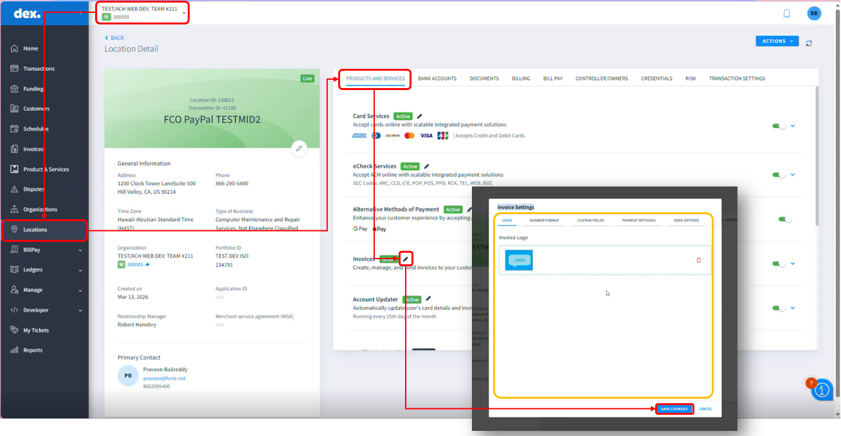
- Access Dex and navigate to the “Locations” tab at the merchant level.
- Optional Step: Ensure invoicing is enabled under “Products and Services” by checking the “Active” status or the green toggle button representing service activation and click the pencil icon.
- Description: Products and services can be added under the “Products and Services” section after the feature is enabled, allowing merchants to define the goods or services they invoice for along with their associated costs. However, this setup is optional and not required to create an invoice, as invoices can be created by manually entering the amount due of the invoice. Setting up products or services in advance or directly from the “Add Invoice” page can help streamline the process and improve consistency.
- Enter the required invoice details and configure invoice settings such as payment methods, number format, custom fields, payment methods and send options. Then, click “Save Changes”.
4.2. Are products or services required before creating an invoice? |
|
|
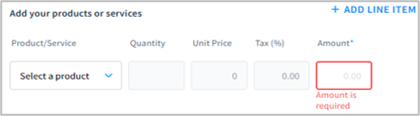
No. Adding products or services in the “Products & Services” section is optional. An invoice can be created without them by directly entering the amount due of the invoice. However, configuring products or services in advance, either from the “Add Invoice” page or beforehand, can help streamline invoice creation and improve consistency.
4.3. What information is required when creating an invoice? |
|
|
Required information includes the selected location, selected customer, invoice number, invoice date, due date, and invoice amount.
The "Company Name" field is not required when creating a new customer for an invoice. When selecting "Create New Customer", the system requires that either "First Name" and "Last Name" or "Company Name" be completed.
If neither option is provided, the system displays the message: "Either the Name or Company Name is required." Although an asterisk (*) appears next to these fields, it indicates that at least one customer identifier must be entered, not that all fields are mandatory.
4.4. What optional fields can be added when creating an invoice? |
|
|
Optional fields include the billing period, product selection and customer notes which are visible on the invoice.
4.5. Can custom fields on the invoices be set up? |
|
|
Yes. Invoice-related configurations, including custom fields, are managed in Dex under the “Products and Services” option in the “Location” tab. These sections allow users to configure invoice settings and customize available fields based on business needs.
4.6. How are invoices sent to customers? |
|
|
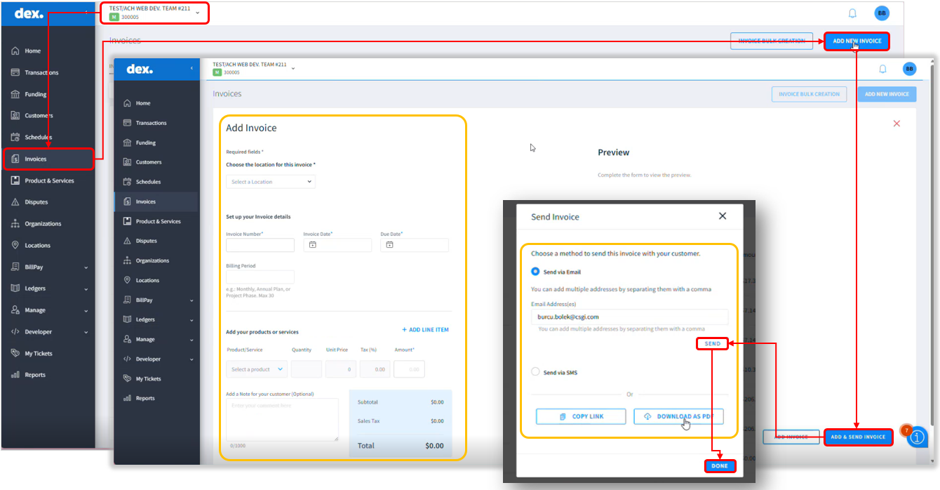
Invoices can be sent from the “Invoicing” tab in Dex once all the invoice details have been completed by following:
- Access Dex and navigate to the “Invoices” tab.
- Click the “Add New Invoice” button in the upper-right corner.
- Enter the required invoice details (such as invoice number, dates, customer, and amount). Review the invoice information in the “Preview” section.
- Click the “Add & Send Invoice” button. After clicking it, a payment link is generated and can be delivered to the customer using one of the available methods:
- Email: Send the invoice directly to the customer’s email address.
- SMS: Send the invoice payment link via text message to the customer's mobile number (with consent). SMS functionality must be enabled before it can be used. Additional configuration and activation requirements may apply.
- The customer receives the invoice as a payment link and can use it to complete the payment.
- Click “Send” on the pop-up message displayed to send the invoice and then click “Done” when finished.
4.7. Can multiple invoices be created at one time (Bulk)? |
|
|
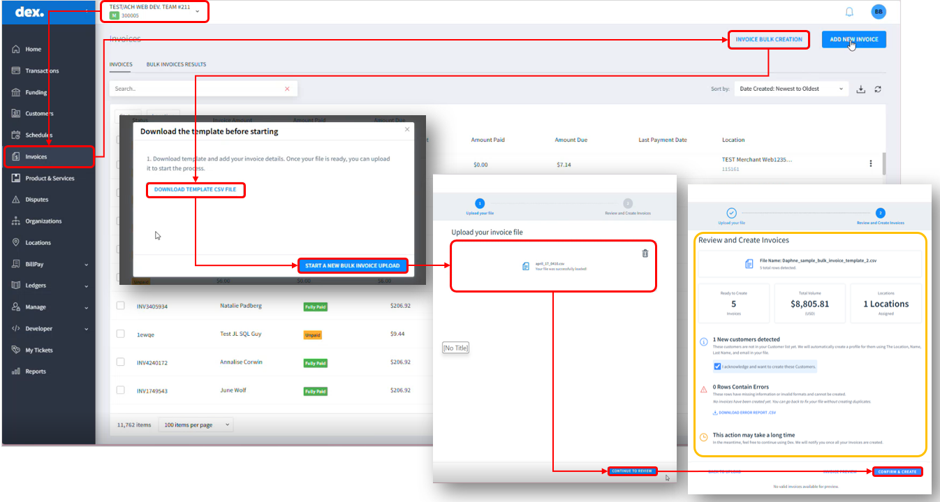
Yes. Dex supports both bulk invoice creation and send. Various invoices can be generated at once using a file upload:
- Access Dex and navigate to the “Invoices” tab.
- Click the “Invoice Bulk Creation” button in the upper-right corner.
- Download the CSV template and complete it with the required invoice details.
- Click “Start a New Bulk Invoice Upload” in the pop-up displayed and upload the completed file.
- Select “Continue to Review” and review the information. Resolve any validation errors shown by the system.
- Click “Confirm and Create” to generate the invoices. Invoices must be sent following the standard process.
4.8. Can custom fields be included when using the bulk invoice upload feature? |
|
|
No. Custom fields are not supported when using the bulk invoice upload feature. To ensure a successful upload, the file must strictly follow the provided template. This means that columns cannot be added, removed, or modified.
4.9. What information is displayed by the “Invoice Preview” button during a bulk upload? |
|
|
The “Invoice Preview” button displays the first valid invoice from the uploaded file. This allows users to verify that the file is properly formatted before completing the full upload process.
Note: The “Review and Create Invoices” view will display detailed error information that must be carefully reviewed and corrected before proceeding. Ensure that all identified errors are resolved and that the process is not continued until no errors remain.
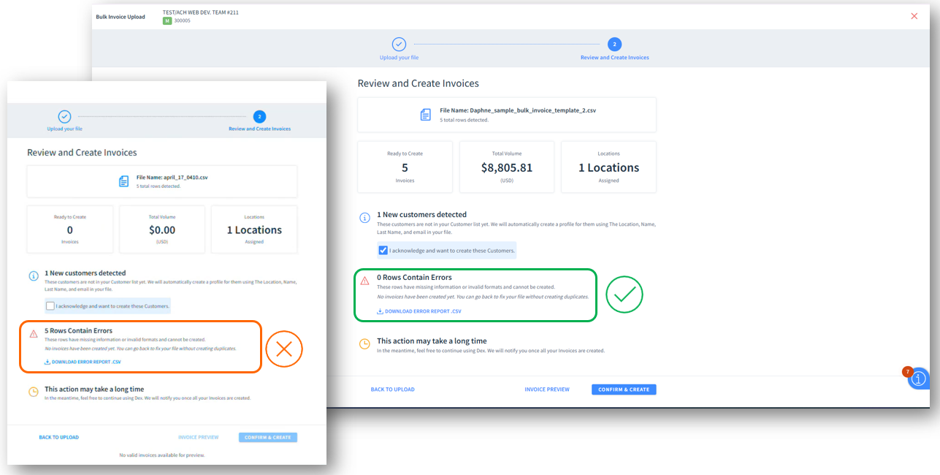
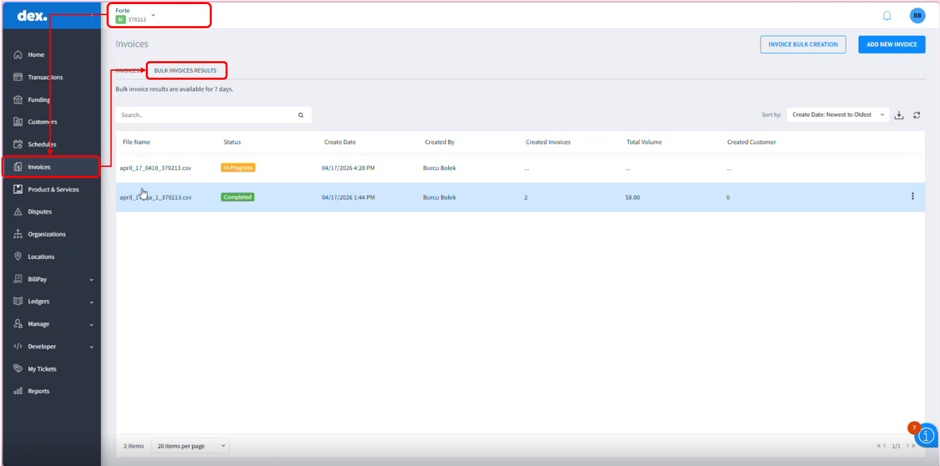
Once submitted, the request is processed and the status and results can be viewed under “Bulk Invoice Results” in the “Invoices” tab within a 60-minute window.
To bulk send invoices, navigate back to the “Invoices” tab, select the required invoices by clicking the corresponding checkboxes, click the “Send Selected Invoices via Email” button, and confirm the action.
4.10. Can invoices be deleted? |
|
|
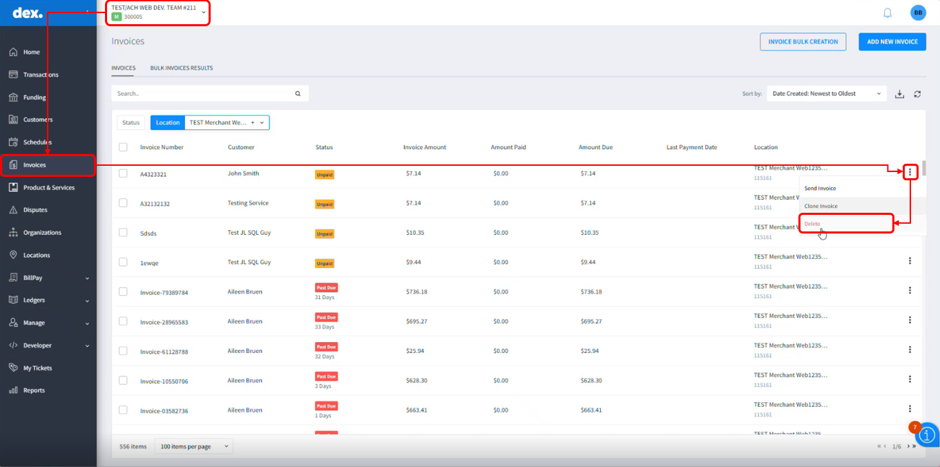
Yes. Invoices can be deleted when users have the appropriate delete permissions assigned and the invoice is in an “Unpaid” status by proceeding:
- Access Dex and navigate to the “Invoices” tab.
- Locate the invoice to be deleted and click the ellipsis icon for the corresponding invoice and choose “Delete” from the dropdown displayed. Once confirmed, the invoice status will be changed to “Delete” in the system and the corresponding payment link will become inactive.
4.11. Can invoices be cloned? |
|
|
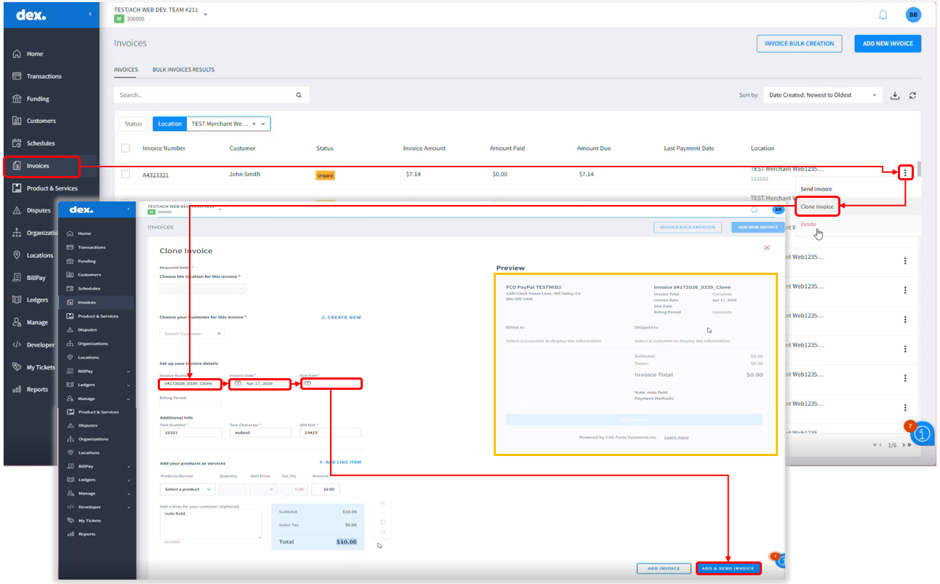
Yes. Dex provides a “Clone” option that allows users to create a new invoice based on an existing invoice, the cloned invoice opens in the invoice creation page with the existing invoice information already populated for review and modification. The invoice number is automatically populated using the original invoice number with the suffix "_clone", which can be updated if needed. which can be updated if needed, by proceeding:
- Access Dex and navigate to the “Invoices” tab.
- Locate the invoice to be cloned and click the ellipsis icon for the corresponding invoice.
- Select “Clone Invoice” from the dropdown menu.
- Review and update the invoice information as needed.
- Click “Add Invoice” or “Add and Send Invoice” as needed following the standard invoice process
4.12. Can an existing invoice be edited? |
|
|
No, invoices cannot currently be edited.
4.13. What happens if an invoice needs to be recreated in Dex? |
|
|
Dex does not currently support updating existing invoices. If an invoice contains incorrect information or if the invoice due date has passed, the invoice cannot be modified or paid. In these situations, the existing invoice must be deleted, and a new invoice must be created.
When a new invoice is created, a new payment link is generated. The new invoice and payment link must then be resent to the customer using the standard delivery method (SMS or email). Please ensure that all invoice details are reviewed carefully before sending, as any required changes will necessitate creating a new invoice.
5. If an invoice is created under the wrong location, can it be moved to another location? |
|
|
No. Invoices cannot be moved from one location to another. If an invoice is created under the wrong location, it must be deleted and recreated under the correct location.
6. How does a customer pay an invoice received by email? |
|
|
To pay an invoice received by email, the customer must:
- Click the “Pay Now” link received.
- Review invoice details (before completing payment, customers can review details such as invoice number, payer name, amount due, and sender information on the payment screen).
- Select a payment method (customers can pay invoices using credit card or eCheck, depending on the merchant’s configuration).
- Enter payment information.
- Submit the payment.
After submission, a confirmation page is displayed indicating that the payment was successfully completed, and the customer may optionally request a confirmation email. The transaction is finalized at that point, and no additional actions are needed.
Once the payment is successfully processed, the invoice status in Dex is automatically updated to “Fully Paid”, allowing the merchant to track the payment status directly from the “Invoices” tab.
Note: Once the payment is completed, the payment link shows a message indicating the transaction has already been processed, preventing duplicate payments, and the link will be invalid for an additional payment.
7. How are "Invoice Date" and "Invoice Due Date" managed? |
|
|
Two date fields are used to manage invoice timing and payment deadlines:
- “Invoice Date”: Can be set to the current date or any future date.
- “Invoice Due Date”: Must be at least one calendar day after the “Invoice Date”. The “Due Date” cannot be the same as the “Invoice Date”.
Note: Once the “Due Date” has passed:
- The invoice can no longer be paid.
- The payment page will not display the invoice details.
- A new invoice must be created if payment is still required.
8. Can recurring payments be set up with invoices allowing the customer to set up payment plans or make multiple payments? |
|
|
Not currently. There is no confirmed recurring-payment or payment-plan capability.
9. Can merchants continue using QuickBooks as an invoicing tool? |
|
|
Yes, merchants can continue using QuickBooks as their invoicing solution; however, Dex Invoicing Services does not currently support integration with QuickBooks. The Invoicing Services feature does not replace QuickBooks and merchants may choose to use the solution that best fits their operational needs.
Note: During the pilot phase, detailed invoice data will not be provided to merchants. Instead, merchants will be presented with a simplified view of their existing invoices to support review activities. If additional invoice details are required, merchants may access this information through their existing systems.
10. Are there any additional available resources? |
|
|
Yes. Several resources have been designed to support learning and become familiar with the system:
- Download Billing Invoice in Dex
- Creating Bulk Invoices
- View & Search Invoices
- Delete Invoices
- Creating Invoices
- Sending Invoices
Was this article helpful?
That’s Great!
Thank you for your feedback
Sorry! We couldn't be helpful
Thank you for your feedback
Feedback sent
We appreciate your effort and will try to fix the article