Questions
- What is Batch File Transmission and how does the process work?
- What Batch file formats and structures are supported?
- How should Batch files be named and prepared for transmission?
- What requirements apply to NACHA-formatted Batch files?
- What are the Company Entry Description requirements for PURCHASE and PAYROLL?
- How do standardized Company Entry Descriptions affect reconciliation?
- How should Batch files be tested before production use?
- How are Batch files securely uploaded to CSG Forte?
- How Can Batch Response Files Be Downloaded and Managed on the FTP/SFTP Server?
- What Batch response and settlement files are available, and how are they retrieved?
- How can encrypted Batch response files be opened?
- Why might a Batch file be rejected, and what should be done?
- What should be done if a Batch “Confirmation” or “Settlement” file is missing?
- What should be done if a Batch file is rejected as a duplicate?
- How can a Batch reversal be requested?
- What information and resources are available when Batch assistance is required?
1. What is Batch File Transmission and how does the process work? |
|
|
Batch File Transmission allows multiple payment transactions to be submitted to CSG Forte in a single file. Depending on the applicable configuration and file format, Batch files can contain ACH/eCheck, credit card, and other supported transactions.
The typical Batch processing lifecycle includes:
- Create: Prepare the Batch file according to the applicable file specification.
- Validate: Confirm the file structure, required fields, “Merchant ID”, “Transmitter ID”, transaction information, totals, and filename.
- Test: Test the file before production use when applicable.
- Upload: Securely transmit the file using the approved FTP/SFTP method.
- Process: CSG Forte validates and processes the submitted file.
- Monitor: Review the available confirmation and processing results.
- Download: Retrieve applicable Batch “Confirmation” and “Settlement” files.
- Reconcile: Compare processing and settlement results with internal records.
Note: Batch File Transmission and settlement Batching are different processes. Successful file processing does not necessarily mean that all transactions have settled or that merchant funding has been completed.
2. What Batch file formats and structures are supported? |
CSG Forte supports several Batch file formats, including:
- CSV (Comma-Separated Values)
- Fixed Format
- NACHA Format
Depending on the applicable format, a Batch file may include:
- File Header
- Batch Header
- Transaction Detail records
- Addenda records, when applicable
- Batch Footer
- File Footer
Files must comply with the applicable record structure, required fields, field lengths, transaction information, and formatting requirements. Failure to meet these requirements may result in a file rejection or processing error.
For detailed field definitions, record positions, and formatting requirements, refer to the BATCH Transmission - File Specification.
3. How should Batch files be named and prepared for transmission? |
|
|
Batch files must follow the naming requirements established for the applicable implementation. For workflows using “.U##” and “.R##” extensions:
- “.U##” identifies a file being uploaded.
- “.R##” identifies a file that is ready for processing.
- “##” represents the applicable two-digit Batch sequence.
For example, a file uploaded with a “.U01” extension may be renamed to “.R01” after the upload has completed and the file is ready for processing. Before submitting a file, verify that:
- The filename follows the required naming convention.
- The correct “Merchant ID” and “Transmitter ID” are included where required.
- Required records and fields are present.
- Transaction counts and amounts are accurate.
- The file complies with the applicable Batch Transmission File Specification.
4. What requirements apply to NACHA-formatted Batch files? |
|
|
NACHA-formatted Batch files must comply with the applicable NACHA and CSG Forte formatting requirements. For the “Company Identification” field:
Record | Position | Length |
Batch Header, Record Type 5 | 41–50 | 10 characters |
Batch Control, Record Type 8 | 45–54 | 10 characters |
The “Company Identification” value is alphanumeric and should be left justified, with unused positions padded with spaces.
NACHA files submitted through CSG Forte must not be balanced. A reconciliation entry against the merchant's funding account should not be included because merchant funding is handled through CSG Forte processing.
5. What are the Company Entry Description requirements for PURCHASE and PAYROLL? |
|
|
Effective March 20, 2026, standardized “Company Entry Descriptions” apply to certain ACH transactions.
Transaction | Applicable entry | Required description |
Qualifying consumer e-commerce purchase | WEB Debit | PURCHASE |
Qualifying payroll transaction | PPD Credit | PAYROLL |
For CSG Forte Batch files, the applicable “Company Entry Description” is entered in:
- Fixed-width format: “Batch Header Record”., Type 2, position 31, length 10 characters.
- CSV format: Fifth field of the “Batch Header Record”.
The description must:
- Not exceed 10 characters.
- Contain alphanumeric characters only.
- Remain consistent throughout the applicable Batch.
- Use the applicable standardized value when required .
6. How do standardized Company Entry Descriptions affect reconciliation? |
|
|
Standardized “Company Entry Descriptions” provide more consistent identification of qualifying transaction types. However, when “PURCHASE” or “PAYROLL” is required, a custom identifier previously placed in the “Company Entry Description” may no longer be available in that field.
As a result, the “Company Entry Description” should not be used as the only method for identifying or reconciling an individual transaction.
CSG Forte transaction reporting and available transaction information should be used to locate the original transaction and support reconciliation when additional details are required .
7. How should Batch files be tested before production use? |
|
|
Testing helps confirm that the file structure and transactions can be processed correctly before normal production activity begins. When Batch testing is required:
- Create a small test file with representative transactions.
- Keep individual test transactions at US$2.00 or less.
- Confirm that the file complies with the applicable Batch Transmission File Specification.
- Submit the file using the applicable testing or transmission process.
- Review the processing results.
- Allow applicable transactions to reach the required settlement state.
- Compare the settlement results with the submitted transactions.
- Complete additional testing, such as reversal testing, when required .
8. How are Batch files securely uploaded to CSG Forte? |
|
|
Batch files may be securely transmitted to CSG Forte using the file-transfer method configured for the applicable merchant or partner implementation. Transmission may be completed manually through an approved FTP/SFTP client or web interface, or through an internal automated system.
Option A: Internal System or Automation
An internal system or automated process may be configured to transmit batch files according to the requirements defined in the Batch Transmission File Specification.
When encryption is required, the batch file must be encrypted using the CSG Forte Batch File Upload PGP Public Key before it is transmitted to CSG Forte for batch processing.
-----BEGIN PGP PUBLIC KEY BLOCK-----

mQGiBDnTWtgRBADRPX9RN8MZSlNRyoAKaxOYgTsKgauYNer1d3 X9Q7O0awzrKfES
CnhUw95LDvwaGjj58DjUZDrDkW2N5S1WjXpPJepqA28zxQyrWB tvxtqRVpcEewiD
6ZUO8S+YGrvMvpfUwLuKUWkjxEMbX6ofXxooO00t6UZk8hUah1 DQVXGlBwCg/92U
DUldiy/X92QNDtIetmP7m90EAMoIb45c+G/UhTQCfhq8U7RmrEpx0xxdvdHoV344
gZRzF5pNnh5zbyW3onQjpH+ti7v58hYzcy1yNuPJLcY+T5jBe0 eCQ1PrkYhLmfSS
iAAd5Be+YgCGcb0KX0ku87dMgHRhmgjM3a8YrmJ/yxEsAA84SPOAtDC0tYJHOIzv
Ob+8BAC10ZZEpIYvqBMfmH+0e4I/7riBDowzVY4n7SAIbA/4qHo4lmzCBjJ7vpg6
0fSUbbEpdOrHKIQHTzGCeFWLdxxNzXedQh/tZYYACYPkpFxiVyi8bZqsDrbBiRku
rDogLDM5uwF61fCJ1k/x7IlxeL3jORJygLqbjqK+qfUFE7mxWLQwUGF5bWVudHNH
YXRld2F5IDxQcm9jZXNzaW5nQFBheW1lbnRzR2F0ZXdheS5uZX Q+iQBOBBARAgAO
BQI501rYBAsDAgECGQEACgkQUaPpPpkZVFzGHACcCA8ZypVyeW iZnmFovsOVa+gc
YrUAn1HmqQhPiVlKFO9Wo6Wmv76GcOQQuQINBDnTWtgQCAD2Ql e3CH8IF3Kiutap
QvMF6PlTETlPtvFuuUs4INoBp1ajFOmPQFXz0AfGy0OplK33TG SGSfgMg71l6RfU
odNQ+PVZX9x2Uk89PY3bzpnhV5JZzf24rnRPxfx2vIPFRzBhzn zJZv8V+bv9kV7H
AarTW56NoKVyOtQa8L9GAFgr5fSI/VhOSdvNILSd5JEHNmszbDgNRR0PfIizHHxb
LY7288kjwEPwpVsYjY67VYy4XTjTNP18F1dDox0YbN4zISy1Kv 884bEpQBgRjXyE
pwpy1obEAxnIByl6ypUM2Zafq9AKUJsCRtMIPWakXUGfnHy9iU siGSa6q6Jew1Xp
Mgs7AAICB/4qadF3lHmqtLlAci1FXs4TRTKRCHOVvZJ1tVOFcIv58bdQSFB0 yYxu
zu5bINDc9FJmeHo/AyVO1c+ureVp8cYcjqbu/v77yBLQegNalEvkiQw5vbHqE637
VnbFgDztw9vQ6JBEHl3iYcfy14hc09QwtxMo7jYa2204jokZG5 1+ZfeMICeijZjf
yNPAIU3jWsUfBOgPWBtTR8xNbvyCoJjWRX/dvl70mcPCXomyN/r5EgfJtOB75VM6
OJ5U79bCdHIWhPnIZ+C5lxo7wsKbmkezTxUfMknD+K/lYyexVg7cczrCwUBUjrDw
MdKn4uTozixpB/2zoLpd/il/GHaggzaxiQBGBBgRAgAGBQI501rYAAoJEFGj6T6Z
GVRcowUAoKXG5vrlZec+4R/JdqXTTfHOFLWwAJ9XWtTpbTdbeTEyT7SQ1ItpULNp
4A==
=bA9r

-----END PGP PUBLIC KEY BLOCK-----
Option B: FTP/SFTP File Transfer
Batch files may be transmitted using the secure FTP/SFTP method configured for the merchant or partner implementation. Compatible clients may include FileZilla, or WinSCP, where applicable.
When using the CSG Forte Secure FTP Web Interface:
- Sign in using the applicable FTP credentials.
- Navigate to the designated upload directory, typically the “ul” folder.
- Upload the Batch file.
- Allow the upload to be completed.
- Rename the file when required by the applicable naming convention.
- Confirm that the final filename indicates that the file is ready for processing.
Use only the connection details and credentials provided for the applicable CSG Forte Implementation team.
9. How Can Batch Response Files Be Downloaded and Managed on the FTP/SFTP Server? |
|
|
For Batch processing, response files are automatically placed in the Download (DL) directory on the FTP/SFTP server and can be downloaded once they become available.
To retrieve response files:
- Log in to the FTP/SFTP server.
- Navigate to the DL directory.
- Download the available response file(s).
- After confirming that the files were successfully downloaded, delete them from the server to help prevent duplicate processing.
Two types of response files may be available:
- Batch Confirmation Files (B files): Provide a list of transactions that were received and successfully processed. These files are generally available shortly after a Batch file is uploaded.
- Settlement Files (S files): Provide settlement information, including funding details and rejected transactions. Settlement files are generated based on processing activity and may be produced multiple times per day.
Response files generally use the naming convention XYYMMDD.###, which identifies the file type, processing date, and sequence number.
Note: Response files are retained on the FTP/SFTP server for a limited period. Files should be downloaded and retained as needed because older files may no longer be available after the retention period expires. Batch confirmation files are not provided for transactions processed in real time.
10. What Batch response and settlement files are available, and how are they retrieved? |
|
|
CSG Forte may provide different response files based on the processing stage:
File | Purpose |
Batch Confirmation File (B File) | Provides information about transactions received and processed. |
Settlement File (S File) | Provides applicable settlement, funding, return, and related processing information. |
To retrieve available response files:
- Sign in to the configured FTP/SFTP service.
- Navigate to the “dl” download folder.
- Locate the applicable response file.
- Download the file.
- Review and reconcile the information with internal records.
- Retain a copy according to the organization's record-retention requirements.
Response files remain available on the FTP server for a limited period, so required files should be retrieved and retained promptly. .
11. How can encrypted Batch response files be opened? |
|
|
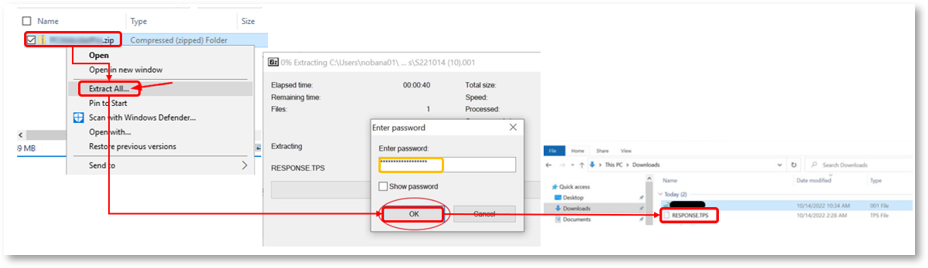
Downloaded response files may be encrypted or compressed. When applicable, a supported extraction application, such as 7-Zip or WinZip, can be used with the applicable password provided for the implementation.
Using 7-Zip
- Download and locate the response file.
- Select the applicable 7-Zip extraction option.
- Enter the applicable password when prompted.
- Complete the extraction.
- Open the extracted response file using the appropriate application.
Using WinZip
- Add the required .zip extension when applicable.
- Open the file with WinZip.
- Enter the applicable password.
- Extract the contents.
- Open the resulting response file.
12. Why might a Batch file be rejected, and what should be done? |
|
|
A Batch file may be rejected when the file or transaction data does not meet the applicable processing requirements. Common scenarios include:
Rejection reason | Recommended action |
Transmitter ID/Filename Mismatch | Verify that the filename reflects the correct “Transmitter ID” and correct the filename as applicable. |
Merchant ID Issue | Verify that the correct “Merchant ID” is being submitted for the applicable merchant account. |
Invalid Data | Review the reported data and compare the affected fields against the applicable file specification. |
Duplicate File | Confirm whether the original submission was already processed before attempting any resubmission. |
File Formatting Issue | Review the record structure, field lengths, required values, and other formatting requirements. |
After the cause has been identified, correct the applicable issue and resubmit the file only when appropriate. For record layouts, field definitions, positions, and formatting requirements, refer to the BATCH Transmission - File Specification.
13. What should be done if a Batch “Confirmation” or “Settlement” file is missing? |
|
|
If an expected Batch “Confirmation” or “Settlement” file is unavailable:
- Confirm that the original Batch file was successfully submitted.
- Verify the filename and “Transmitter ID”.
- Confirm that processing has completed.
- Check the "dl" folder for the applicable response file.
- Confirm that the file was not already retrieved by another user or automated integration.
- Review available transaction reporting to verify the processing or settlement status.
- Contact CSG Forte if the expected response remains unavailable.
When requesting assistance, provide the affected filename, “Merchant ID”, “Transmitter ID”, submission date and time, and relevant transaction information. .
14. What should be done if a Batch file is rejected as a duplicate? |
|
|
A duplicate-file rejection should not automatically result in resubmission.
First, verify whether the original Batch was successfully processed. Transaction reporting should be reviewed to determine whether the original transactions were received and processed.
If the original file was processed, submitting the transactions again could result in duplicate processing.
If the processing status remains unclear or the rejected Batch needs to be processed, contact CSG Forte for assistance before resubmitting the file
15. How can a Batch reversal be requested? |
|
|
Batch reversals require careful review because the original transactions may already have settled or been funded, and ACH returns associated with the original transactions may still occur after a reversal is processed.
When reversal assistance is required, contact CSG Forte and provide:
- “Merchant ID” and “Transmitter ID”.
- Applicable Batch information.
- Original transaction information.
- Transactions that require reversal.
- Transactions that must not be reversed.
- Relevant processing or notification information.
A formal written request from an authorized merchant contact may be required before the reversal can be processed.
16. What information and resources are available when Batch assistance is required? |
|
|
When contacting CSG Forte regarding a Batch processing issue, provide as much of the following information as available:
- Merchant ID
- Transmitter ID
- Filename
- Batch Reference Code
- Date and time submitted
- Transaction count
- Total amount
- Complete rejection or error message
- Brief description of the issue
For file structures, required fields, field positions, record layouts, and formatting requirements, refer to the BATCH Transmission - File Specification.
For Batch integration assistance: |
|
|
CSG Forte Integration Support
Email: integration@forte.net
Phone: 866-290-5400, Option 5
Hours: Monday through Friday, 7:00 a.m. to 7:00 p.m. Central Time.
Was this article helpful?
That’s Great!
Thank you for your feedback
Sorry! We couldn't be helpful
Thank you for your feedback
Feedback sent
We appreciate your effort and will try to fix the article