Questions
1.1 What is Billpay?
1.2 What are the Key benefits of BillPay?
1.3 How does BillPay protect payment information?
1.4 How Does BillPay Work?
1.5 How is the BillPay Portal enabled or reactivated, and suspended in DEX?
1.6 What Features and Payment Options Are Available Through BillPay?
1.7 What Do Customers Need Before Using BillPay?
1.8 How Are Payment Amount Options Determined in BillPay?
1.9 Can Customers Pay Multiple Bills in One Transaction?
1.10 What Is the Blocked Parcel File Feature in BillPay?
1.11 What Are the Best Practices for Monitoring Daily BillPay File Uploads?
1.12 How can assistance be requested for file processing issues or missing file confirmations?
1.1 WHAT IS BILLPAY? |
|
|
CSG Forte BillPay is a hosted Electronic Bill Presentment and Payment (EBPP) solution that enables customers to view bills, make payments, enroll in AutoPay, schedule future payments, and manage payment information through a secure, branded self-service portal. It supports multiple payment methods and channels while helping organizations streamline billing operations and improve customer payment experience. Get started with this video!
1.2 WHAT BUSINESS PROBLEM DOES BILLPAY SOLVE? |
BillPay helps organizations electronically present billing information and collect payments through a branded and configurable self-service portal. The solution allows billers to:
- Provide customers with access to their bills online.
- Allow customers to locate specific obligations using configurable search criteria.
- Accept payments electronically.
- Support guest and registered payment experiences.
- Offer flexible payment options based on merchant-defined rules.
- Reduce the need for merchants to build and maintain their own bill presentment portal.
- Receive payment activity information for reconciliation and billing-system updates.
1.3 WHAT ARE THE KEY FEATURES AND BENEFITS OF BILLPAY? |
|
|
BillPay provides a secure, flexible, and configurable bill presentment and payment experience that supports both payors and merchants across multiple payment and account management needs.
Capability | Description |
Guest and registered payment experiences | Allows customers to pay without creating an account through “Pay Now” or register for additional bill and payment management capabilities. |
OTP login | Supports one-time-password authentication, providing an additional login option for registered users. |
Customizable and branded portal | Supports merchant branding, custom URLs, search criteria, bill display fields, messaging, and other configurable portal options. |
Bill presentment and anywhere access | Provides a responsive experience across desktop, tablet, and mobile, allowing customers to access, view, download, print, and pay bills. |
Flexible payment options | Supports full payments, partial payments, overpayments, and prepayments based on merchant-configured rules and limits. |
Multiple payment methods and channels | Supports credit card and eCheck/Electronic Funds Transfer (EFT) payments, along with web, mobile, IVR, and supported in-person payment experiences. |
Autopay and scheduled payments | Allows registered customers to create and manage AutoPay and scheduled payments when enabled by the merchant. |
Outstanding balance and late fee management | Supports grouping related bills, prioritizing older outstanding balances, and applying late fees through bill-file configuration. |
Secure payment processing | Uses hosted payment processing and tokenization through Forte Checkout to help protect sensitive payment information and reduce PCI exposure. |
Receipts and payment confirmation | Allows customers to view and print payment receipts, with email confirmations available when configured. |
Notifications and communications | Supports merchant and customer notifications for activities such as bill delivery, registrations, scheduled payments, and other configured events. |
Portal messaging | Allows merchants to display announcements, maintenance messages, help content, and scheduled portal suspension messaging. |
1.4 HOW DOES BILLPAY WORK? |
|
|
BillPay provides a hosted portal where billing information supplied by the merchant is presented to customers for review and payment. The general process includes:
- Bill information is submitted: The merchant provides billing information to CSG Forte using the applicable BillPay file process.
- Bills are presented: BillPay displays applicable bill information, such as amounts due, due dates, and payment status, based on the merchant's configuration.
- Customers submit payments: Customers can locate eligible bills and complete payments using the options enabled by the merchant.
- Payment activity is provided to the merchant: Payment information is returned to support reconciliation and updates to the merchant's billing records.
The specific BillPay experience and available functionality may vary based on the merchant's configuration.
1.5 WHAT FEATURES AND PAYMENT OPTIONS ARE AVAILABLE THROUGH BILLPAY? |
|
|
BillPay provides a configurable payment experience that may allow customers to search for bills, view bill details, make payments, and manage payment-related activities. Depending on the merchant's configuration, customers may have access to:
- Guest Pay/Pay Now for payments without creating an account.
- Registered Pay for additional account and bill-management capabilities.
- Saved payment methods.
- Payment history and payment status.
- Scheduled payments.
- AutoPay.
- Payment receipts and email confirmations.
- Credit card and eCheck/EFT payment options.
- Partial payments, overpayments, or prepayments when enabled.
Available features and payment methods vary according to the merchant's configuration and the eligibility of the bill being paid .
1.6 HOW ARE PAYMENT AMOUNT OPTIONS DETERMINED IN BILLPAY? |
|
|
The payment amounts available in BillPay depend on the merchant's configuration, the bill's current amount due, and applicable payment rules. Depending on the configuration, customers may be able to make the following payments.
- Full payments: Payment of the applicable current amount due.
- Partial payments: An amount below the current amount due, subject to configured minimum requirements.
- Overpayments: An amount greater than the current amount due subject to applicable limits.
- Prepayments: Payments made after applicable bill requirements have been satisfied and prepayment is available.
Not all payment options are available for every merchant or bill. BillPay presents the payment options applicable to the current bill and configuration. .
1.7 CAN CUSTOMERS PAY MULTIPLE BILLS IN ONE TRANSACTION? |
|
|
Yes. BillPay provides shopping-cart functionality that allows customers to select multiple eligible bills and pay them together through a single checkout. Whether this option is available depends on the merchant’s portal configuration, supported payment options, and applicable bill rules..
1.8 WHAT IS THE BLOCKED PARCEL FILE FEATURE IN BILLPAY? |
|
|
The Blocked Parcel File feature allows specific bills or records to be temporarily prevented from being paid through the BillPay portal or IVR. Once a blocked file is uploaded through the CSG Forte FTP server, the identified records are hidden from customer view and remain unavailable for payment until they are unblocked.
1.9 WHERE CAN INSTRUCTIONS FOR MANAGING THE BILLPAY PORTAL IN DEX BE FOUND? |
|
|
Instructions for managing the BillPay Portal in Dex, including portal activation, reactivation, suspension, and related configuration, are available in the following CSG Forte Support resources:
These resources should be referenced for the applicable procedures and current configuration guidance.
1.10 WHAT ARE THE BEST PRACTICES FOR MONITORING DAILY BILLPAY FILE UPLOADS? |
|
|
To ensure that customer balances, amounts due, and billing information remain accurate on the BillPay website, merchants should actively monitor the status of their daily BillPay File uploads. During the daily synchronization process, billing and transaction information is transmitted between the merchant's system and CSG Forte through a File Transfer Protocol (FTP) process. These files are used to update account information and ensure that the most current amounts due are reflected on the BillPay website.
Best practices include:
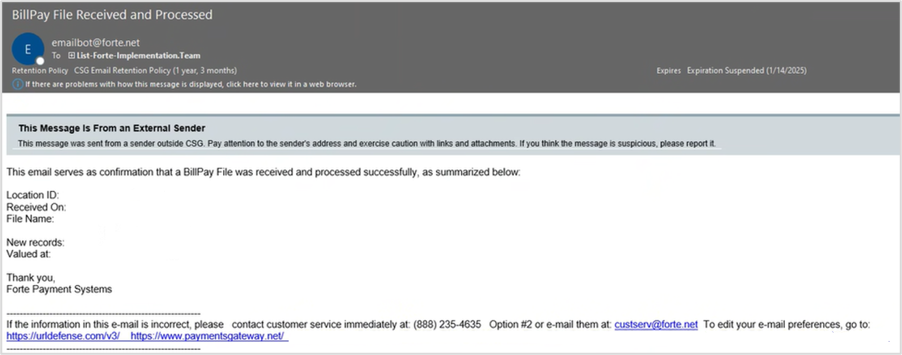
- Verify that designated merchant contacts receive the "BillPay File Received and Processed" email notification each time a file is successfully processed.
- Regularly monitor file processing activity, especially during peak collection periods, to ensure updated billing information is reflected on the BillPay website.
- Confirm that the primary and secondary file notification recipients are current and actively monitore
- Maintain up-to-date notification recipients, as BillPay File processing notifications are limited to four email addresses.
- Request updates to the notification recipient list by contacting implementation@forte.net.
If a "BillPay File Received and Processed" email is not received, it may indicate that the file upload or processing failed. In these situations:
- A support ticket is automatically created within CSG Forte's ticketing system.
- The issue is reviewed by the CSG Forte Technical Support team.
- Merchants may be instructed to work with their software provider to retransmit a corrected file if necessar
Below is an example of the "BillPay File Received and Processed" email. The notification sent to your organization will include file-specific details and processing information relevant to your BillPay environment.
1.11 HOW IS A VERIFONE V400C PLUS TERMINAL INTEGRATED WITH BILLPAY? |
|
|
The Verifone V400C Plus terminal can be integrated with BillPay by adding the “dm=emv-1” parameter to the end of the BillPay payment-center link. Example: CSG Forte BillPay Demo. When the integration is configured correctly, a “Read Card” button appears at the bottom of the payment screen for card acceptance.
The following prerequisites must be completed:
- Set the V400C Plus terminal to semi-hybrid mode and connect it using a USB cable.
- Install the Verifone Unified Driver Installer 5.0.5.2-B7.
- Install the Forte Payment Device Handler 1.0.9.
- Set the merchant account market type to “Retail”.
Note: V400C Plus is not compatible with the new BillPay Checkout template.
1.12 HOW CAN ASSISTANCE BE REQUESTED FOR FILE PROCESSING ISSUES OR MISSING FILE CONFIRMATIONS? |
|
|
For assistance with file processing issues or missing file confirmations, contact our Integration Support at integration@forte.net or 866-290-5400, Option 5.
Was this article helpful?
That’s Great!
Thank you for your feedback
Sorry! We couldn't be helpful
Thank you for your feedback
Feedback sent
We appreciate your effort and will try to fix the article