Content
Use this guide to know how to create and complete a Rate Plan in Dex as part of the merchant onboarding process. It provides step-by-step guidance to set up the rate plan. Once activated, it can be shared with the merchant, who will receive the Merchant Service Agreement (MSA) to review and e-sign.
1. How to create a Rate Plan
2. How to complete the Rate Plan - Portfolio and services
3. How to complete the Rate Plan - Pricing
4. How to complete the Rate Plan - Plan information
5. How to complete the Rate Plan - Review and activate
6. Merchant Service Agreement (MSA)
1. How to Create a Rate Plan |
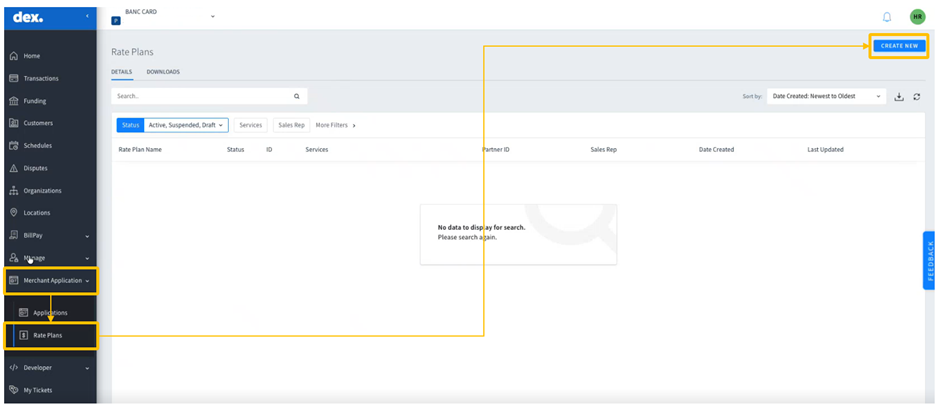
To create a new "Rate Plan" in Dex, the user must:
1. Log in to Dex and access their profile.
2. In the left navigation menu, select “Merchant Application” and then “Rate Plan"
3. In the upper right corner of the page, click “Create New” to open a new "Rate Plan" form. This action opens the structured "Rate Plan" form, which is divided into four sections.
2. How to Complete the Rate Plan / Portfolio and Services |
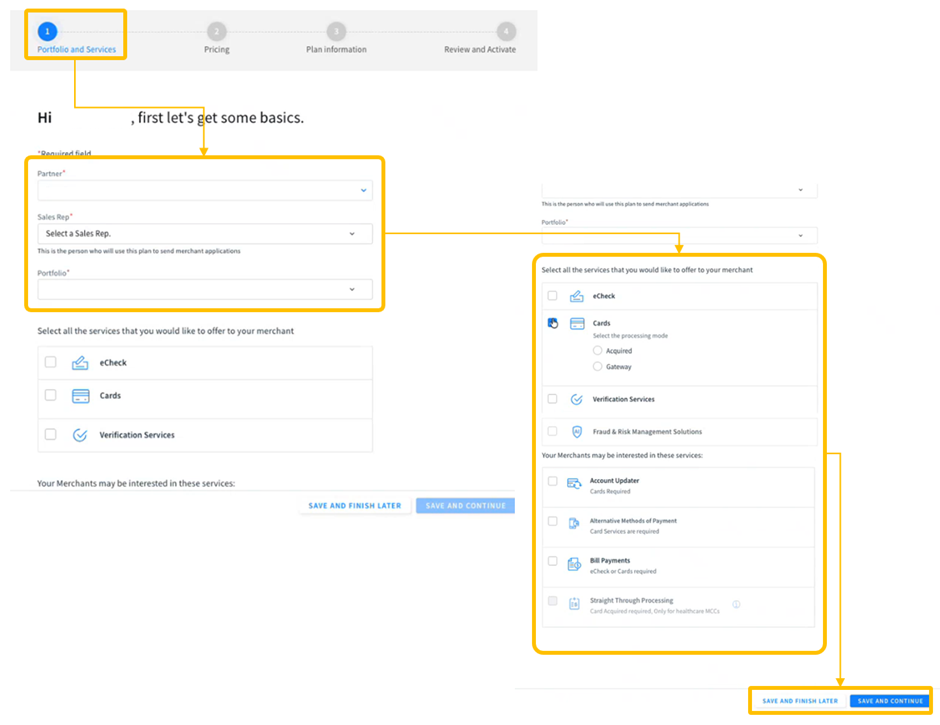
In this phase, the user must:
1. Complete all required fields.
2. Ensure that the “Portfolio” selected matches the correct merchant portfolio.
3. Select the applicable “Services” for the merchant.
If “Cards” is selected, the user must also select the corresponding Processing Mode (e.g., Acquired or Gateway).
Processing Mode Considerations | |
If “Acquired” is selected | ● The system displays the costs associated with the merchant’s acquisition. ● The user can review applicable commission splits and per transaction fees. |
If “Gateway” is selected | ● The system presents the pricing and parameters related to gateway based processing. ● The structure differentiates the fees and rules depending on the selected processing type. |
Note: Service Fee Rate Plans follow a different configuration flow than standard pricing models. Partners must ensure the correct options are selected based on the applicable service fee structure.
4. Once all required services and selections are completed, the system offers two options that the user may choose as best fits their workflow:
● "Save and Finish Later": save the progress and allow the user to return to the "Rate Plan" at any time.
● "Save and Continue": save the information and proceed directly to the next phase.
3. How to Complete the Rate Plan - Pricing |
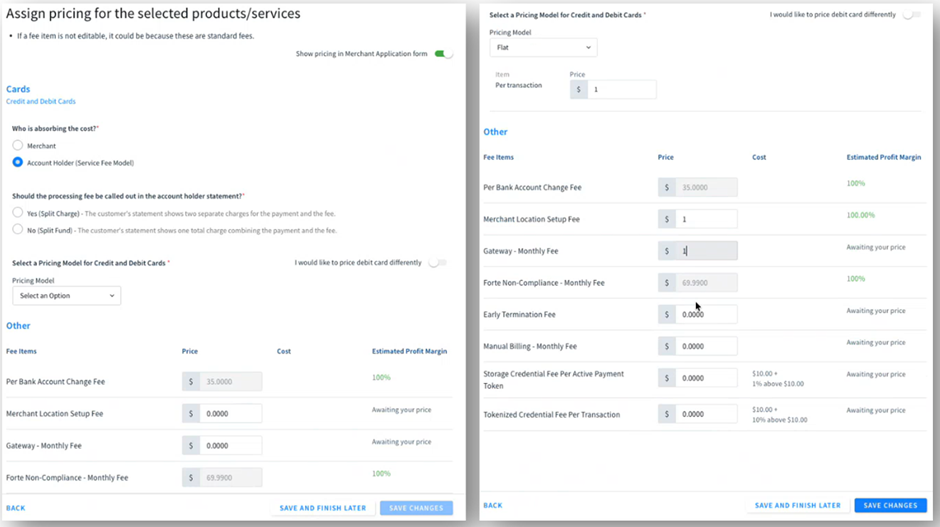
In the "Pricing" section, the system displays the fee items associated with the services selected in the previous phase.
1. The user must ensure that all pricing values are entered correctly and correspond to the merchant’s configuration. This section contains four primary columns:
Fee Items | Indicates the specific items or charges that will apply to the merchant. |
Price | Represents the amount the merchant will be charged for each item. Note: Some items may have predefined pricing depending on the service model. |
Cost | Internal cost associated with delivering that service. (If additional clarification is needed for this column, it should be confirmed with the internal pricing team.) |
Estimated Profit Margin | Displays the expected profit percentage based on the price entered and the associated cost. |
2. The layout and fields displayed in the “Pricing” section depend on what was selected under “Cards” in “Portfolio and Services”
If “Gateway” was selected | The system will require the user to configure pricing based on who absorbs the processing cost. |
If “Acquired” was selected | The system provides two options:
Providing clear guidance in this area is essential, as partners often experience confusion regarding absorbed vs. split configurations, according to stakeholder feedback. |
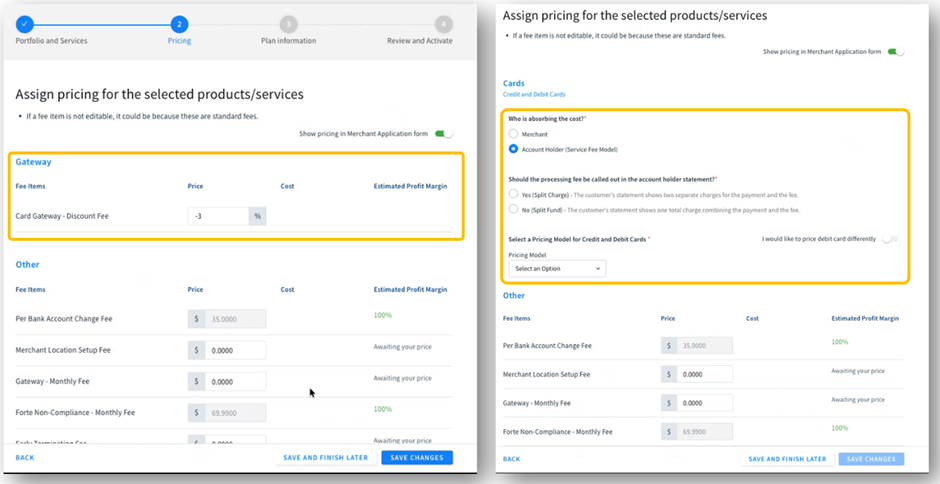
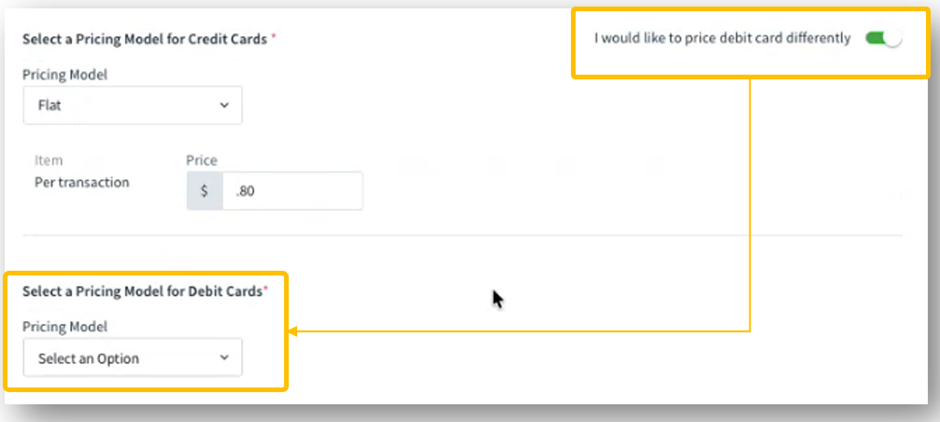
3. Within the "Pricing" section, the system may display the option “Would you like to price debit cards differently?” If this option is selected, the user must ensure that the correct “Pricing Model” is chosen and that the corresponding debit card pricing is entered accurately
4. Select "Save and continue" to proceed to the next section.
4. How to Complete the Rate Plan - Plan Information |
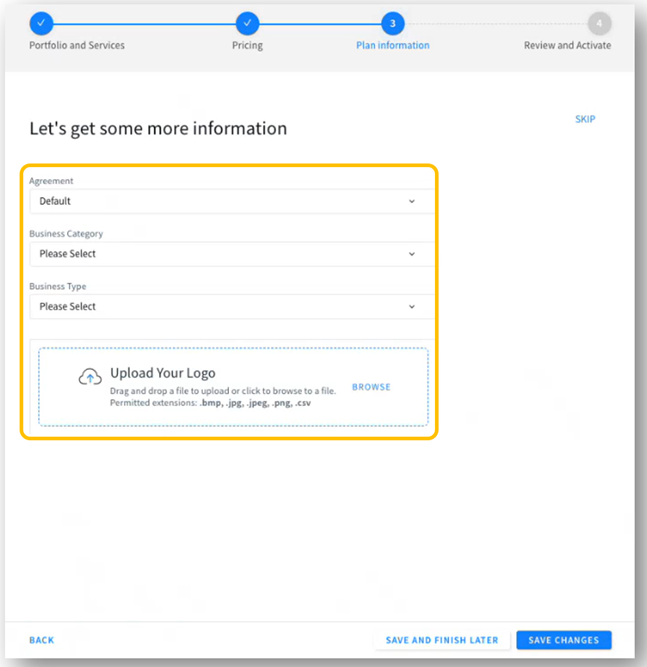
In this section, make sure to complete all fields according to the merchant’s configuration. Once all required information has been entered, select “Save and continue” to proceed to the next phase
5. How to Complete the Rate Plan - Review and Activate |
In this section, a summary of all selected products, services, and their corresponding pricing is displayed. If any adjustment is needed, the user may modify the information by selecting the pencil (edit) icon. Once all details have been verified and are accurate, the user may proceed by selecting “Activate Rate Plan.”
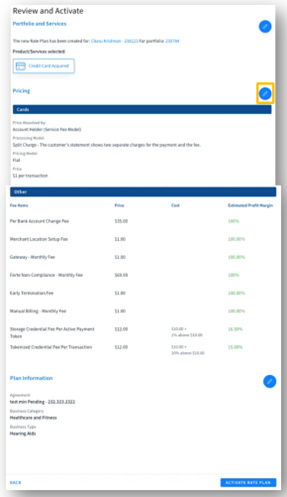
After selecting “Activate Rate Plan”, the system automatically displays a confirmation pop up indicating that the "Rate Plan" has been successfully created. The user then has two options for sending it to the merchant:
Send via Email | ● Enter the merchant’s information in the “E‑mail ID” field. ● This option includes a message box where the user may customize the message that will accompany the Rate Plan. |
Share Link | This option allows the user to copy the generated link and share it through any preferred communication channel. |
6. Merchant Service Agreement (MSA) |
Once the "Rate Plan" is activated, the system automatically displays a pop‑up confirming that the plan has been created. Regardless of the delivery method selected, the merchant will receive the Merchant Service Agreement (MSA). The MSA includes two main components:
Information Collection Form | The first section contains a form the merchant must complete with the required business and operational information. |
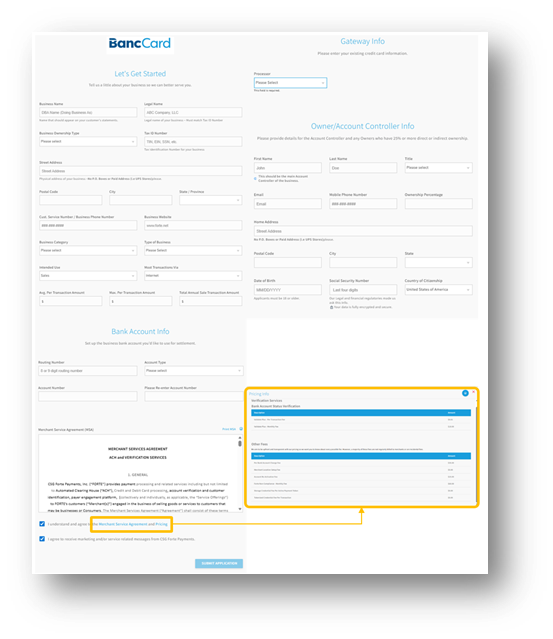
Merchant Service Agreement (MSA) and Pricing Details | The second section includes the full agreement for the merchant to review. Within this section, the merchant will also find an attachment containing a detailed breakdown of the pricing previously configured in the "Rate Plan". The merchant may open this attachment by selecting the link provided. |
After reviewing the agreement and pricing details:
● If the merchant agrees with the terms, they will proceed to electronically sign the MSA.
● Once signed, the process transitions to the next stage, where the CSG Forte team continues with implementation and activation activities, as outlined in the onboarding process.
Was this article helpful?
That’s Great!
Thank you for your feedback
Sorry! We couldn't be helpful
Thank you for your feedback
Feedback sent
We appreciate your effort and will try to fix the article